Universal content
Review and edit reusable assistant messages that are not tied to one flow.
Definition
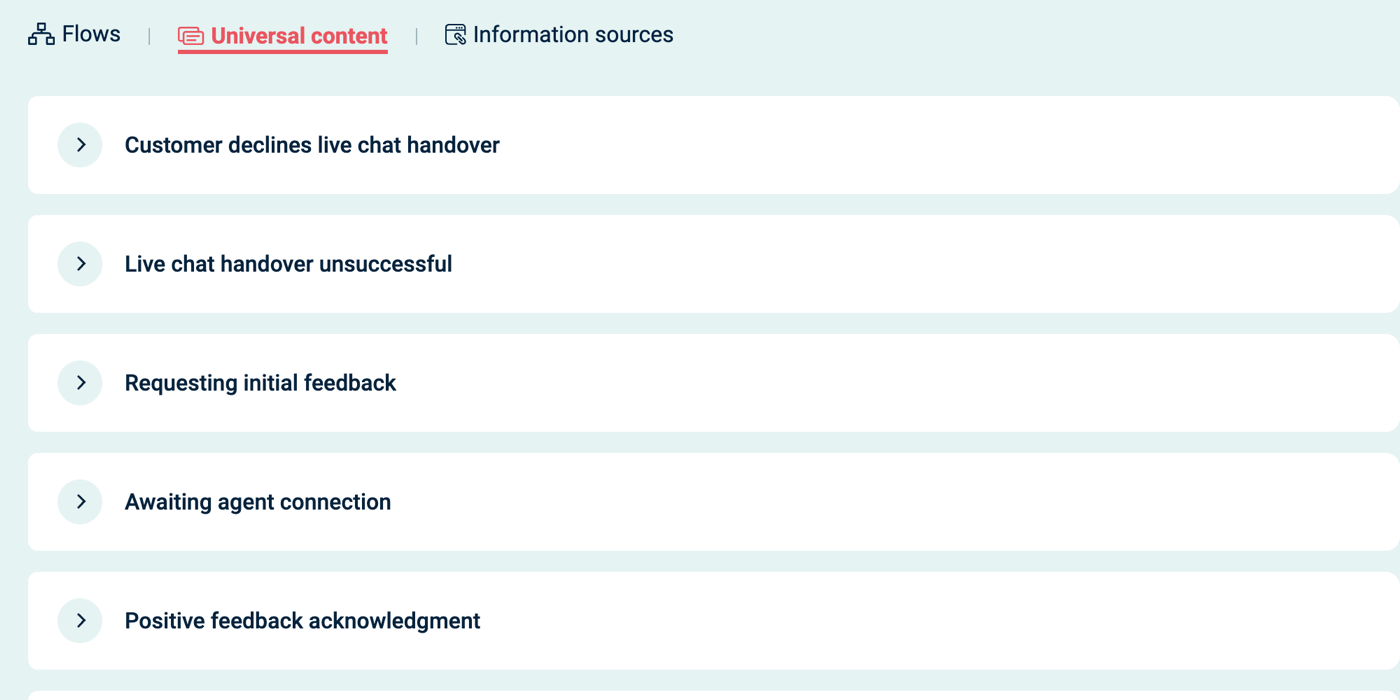
Universal content is the Content area where you edit reusable assistant messages that can appear across the assistant, outside a single flow.
Use it for shared messages such as welcome text, feedback prompts, live chat handover messages, and fallback messages.
When To Use It
Use Universal content when you want to:
- Set the assistant's default welcome message
- Change the examples shown with the welcome message
- Adjust feedback prompts and feedback acknowledgements
- Change live chat handover wording
- Change fallback wording when the assistant cannot help
- Change wording shown while generated content is being prepared
- Change wording shown when a user gives an invalid answer to a question
Do not use Universal content for answers that should run only for one topic. Use a flow for that instead.
Reusable Messages
| Message | When it appears | What to check before editing |
|---|---|---|
| AI assistant welcome message | When the assistant starts a conversation. | Make sure it is short, welcoming, and matches the assistant's purpose. |
| AI assistant welcome examples message | When the assistant shows example things a user can ask. | Keep examples realistic and aligned with published flows. |
| AI assistant requires clarification | When the assistant needs the user to be clearer. | Ask for one clear next action instead of listing too many options. |
| Requesting initial feedback | When the assistant asks whether a response was helpful. | Keep the wording neutral so users understand they can give honest feedback. |
| Positive feedback acknowledgment | After a user gives positive feedback. | Keep it brief; the user has already finished the main task. |
| Negative feedback acknowledgment | After a user gives negative feedback. | Acknowledge the issue without promising a specific fix. |
| AI assistant initiates live chat handover | When the assistant offers to transfer the user to live chat. | Make clear what will happen if the user accepts. |
| Awaiting agent connection | After live chat handover starts and the user is waiting for an agent. | Set expectations without giving a specific wait time unless your team can meet it. |
| Customer declines live chat handover | When the user rejects an offered live chat handover. | Keep the user in control and offer another route if useful. |
| Live chat handover unsuccessful | When live chat handover cannot be completed. | Give a useful next step, such as trying again or using another support channel. |
| Unable to assist - suggest support | When the assistant cannot answer and should suggest support. | Point to the right support route and avoid vague apologies. |
| Generating content notification | While the assistant is preparing generated content. | Keep the message short so it does not distract from the answer. |
| Slow content generation notification | When generated content is taking longer than expected. | Reassure the user that the assistant is still working. |
| Invalid response to question asked by AI | When a user gives an answer that does not match a question's expected format. | Explain the expected answer format plainly. |
| Invalid response to a question with options not displayed | When the assistant cannot show the expected options and the user's response is not valid. | Give a clear retry instruction. |
How To Edit Universal Content
- In the top navigation, select Content.
- Select Universal content.
- Select or expand the reusable message card you want to edit.
- Update the flow bubbles inside that message.
- Use the preview panel to check the wording.
- Select Publish inside the expanded message editor when the edited message is ready to use.
Universal content uses the same editor controls as flows, so you can edit response bubbles, duplicate bubbles, remove bubbles, and reorder bubbles where those controls are available.
Because these messages are shared across the assistant, do a full edit-and-publish check in a safe test assistant before release review.
Verify
After editing Universal content:
- Use the preview panel on the Universal content page.
- Use Content > Flows > Try your live AI for messages that can appear in the test chat.
- Check Web Messenger after publishing if the message appears at the start of a visitor conversation.
- Trigger the relevant scenario where possible, such as feedback, unclear input, or live chat handover.
Common Issues
- The edited message does not appear: check that you selected Publish after editing.
- The preview says it is not available: some message structures cannot be fully previewed inside Universal content. Test the message in Try your live AI or Web Messenger instead.
- The message is too specific: move topic-specific wording into a flow and keep Universal content general.
- Welcome examples are out of date: update the examples after changing published flows, especially when flow titles or user-facing topics change.
- Live chat handover wording is misleading: check live chat availability, working hours, and team setup before promising agent access.