Build
Publishing
Publish changes in EBI's AI Studio so users see the latest flows and settings.
Outcome
By the end of this guide you will know how to publish flow and style changes so they go live for end users.
Prerequisites
- You can sign in to EBI's AI Studio
- You have tested your changes (recommended)
- Each flow you want to publish has enough training examples, if EBI's AI Studio asks for them
Steps
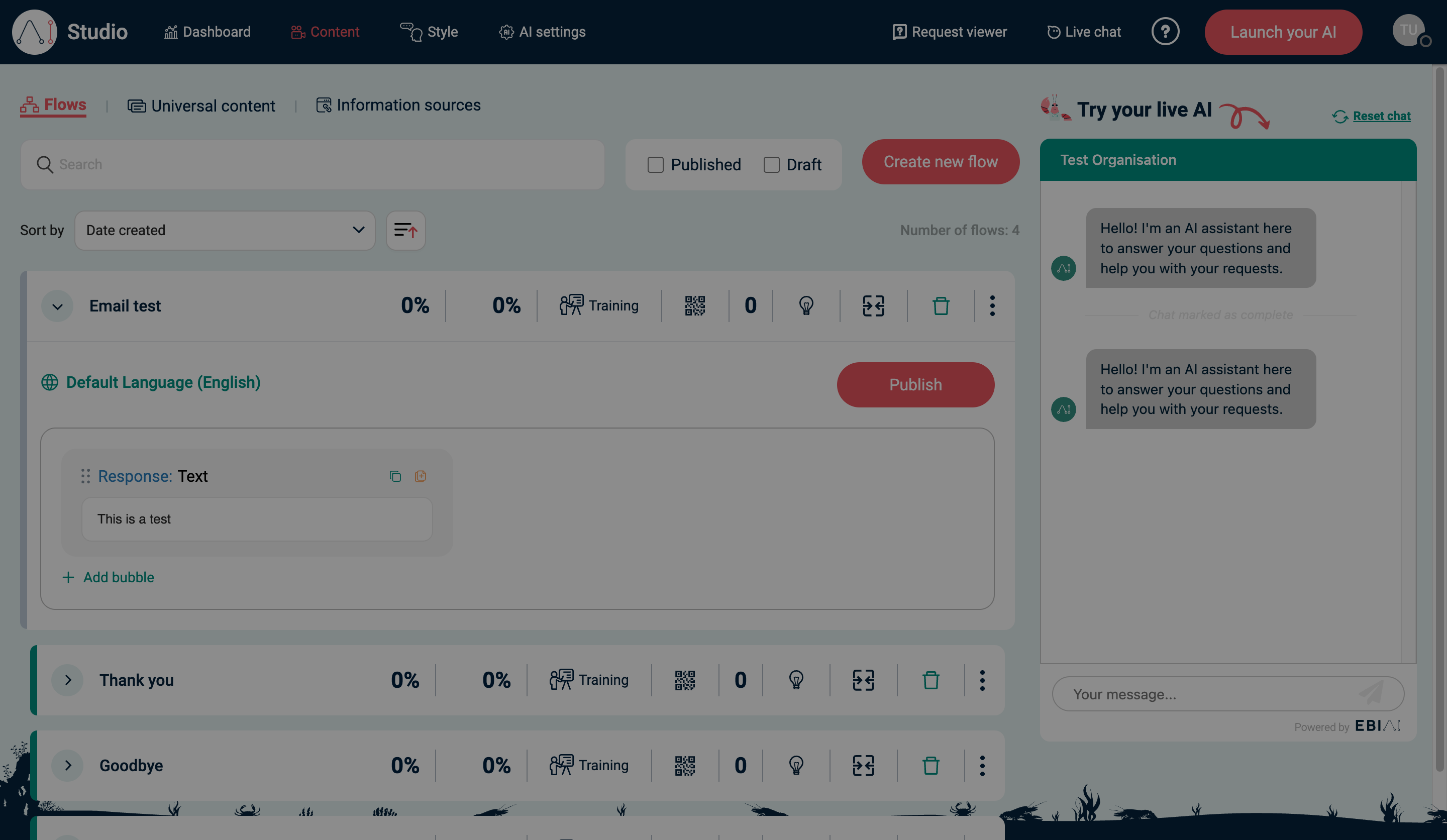
1) Publish flow changes
- In the top navigation, select Content.
- Select Flows.
- Make your edits (add/update flows and responses).
- Select Publish.
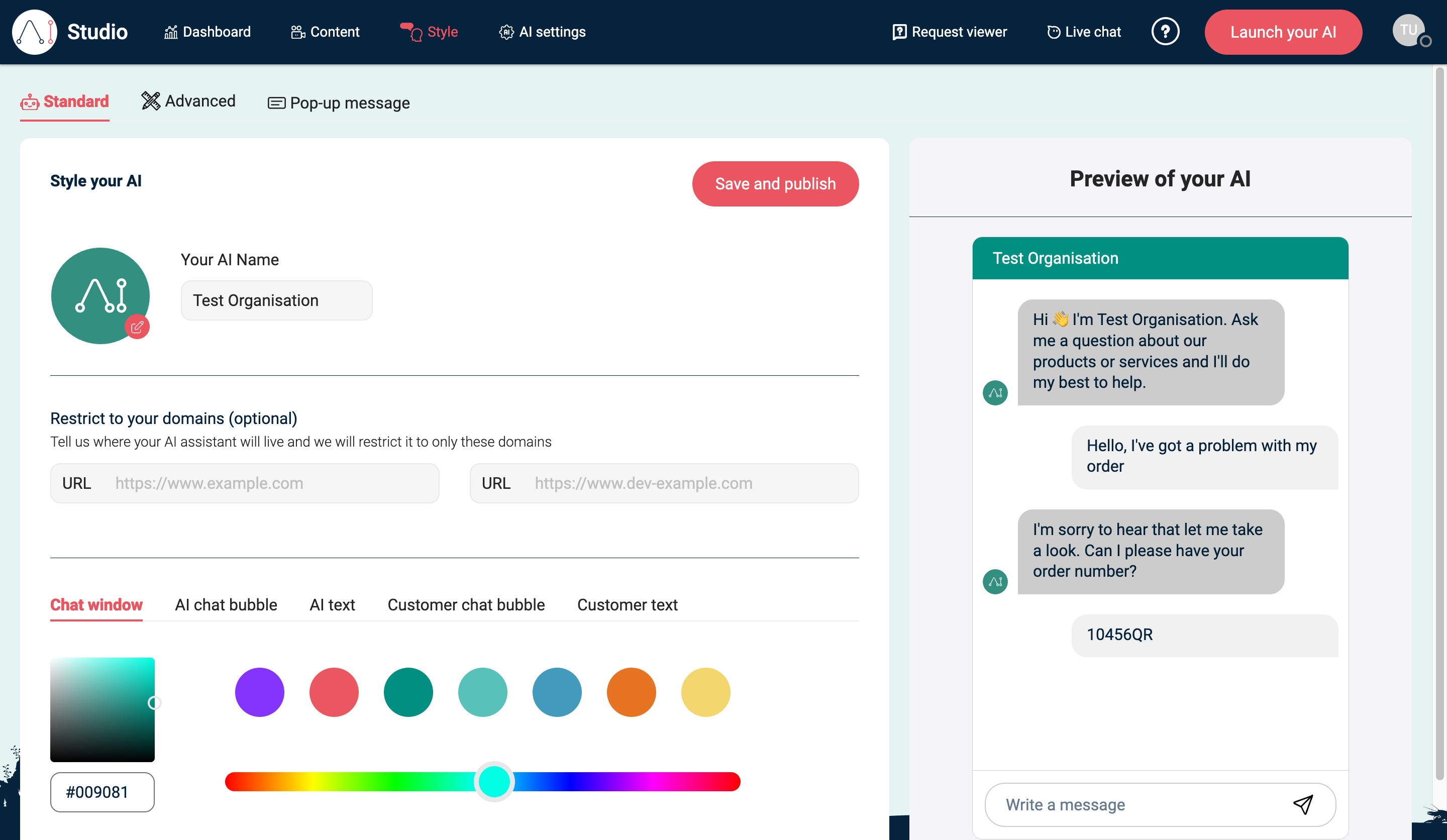
2) Publish style changes (if you changed them)
- In the top navigation, select Style.
- Make your edits (for example allowed domains).
- Select Save and publish.
3) Launch or re-test your live AI assistant
- Select Launch your AI if you haven’t embedded Web Messenger yet.
- Test on your live website (incognito/private window recommended).
Verify
- Your changes appear in Try your live AI
- If you use Web Messenger, your live website reflects the same behaviour after publishing
Common issues
- Changes don’t appear: refresh the page and confirm you selected Publish (flows) or Save and publish (style).
- Web Messenger is still using old behaviour: test in an incognito/private window to avoid cached scripts.
- You see "Please add at least 5 trained examples in order to publish a flow": open the flow's training examples, add at least 5 realistic user messages, then select Publish again.
- A flow doesn’t trigger: add more training examples for the flow, or add sources under Information sources.