Information sources
Add and maintain website and document source material for generated responses and suggested flows.
Outcome
By the end of this guide you will know how to add, review, refresh, and maintain Information sources in EBI's AI Studio.
Use Information sources for approved material such as website pages, policy documents, help articles, and product information. EBI's AI Studio can use this material to generate responses directly or to suggest new flows for you to review and validate.
Prerequisites
- You can sign in to EBI's AI Studio
- You have permission to edit Content
- You have a public website URL or trusted documents to add
Do not upload confidential files unless they are approved for use by your assistant.
Steps
1. Open Information sources
- In the top navigation, select Content.
- Select Information sources.
- Review the two main tabs:
- Website URL
- Upload documents
2. Capture website content
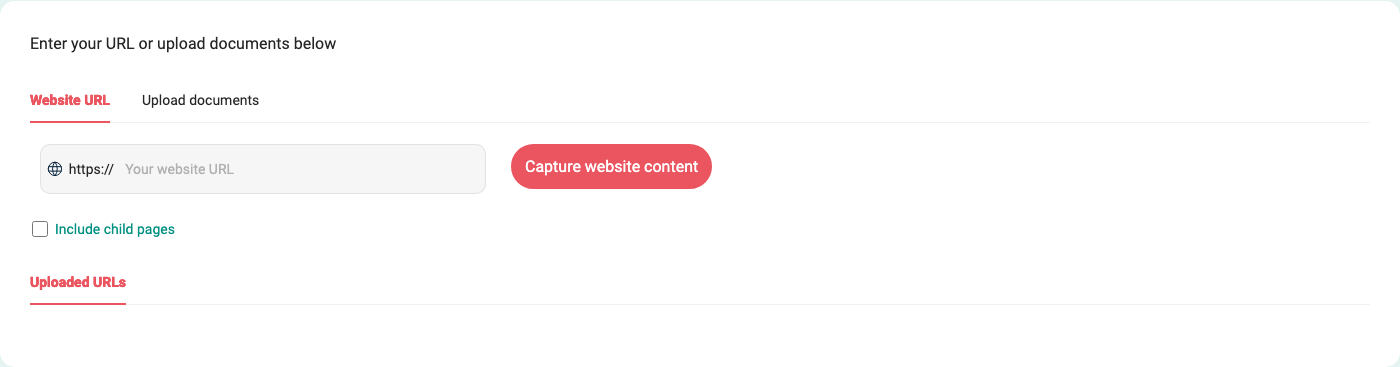
- Select Website URL.
- Enter the site or page into Your website URL.
- Leave Include child pages off when you only want the page you entered.
- Turn Include child pages on when the assistant should also use linked child pages from that site area.
- Select Capture website content.
- Review captured pages under Uploaded URLs.
The field already includes https://, so enter the domain or path without the protocol when possible.
3. Upload documents
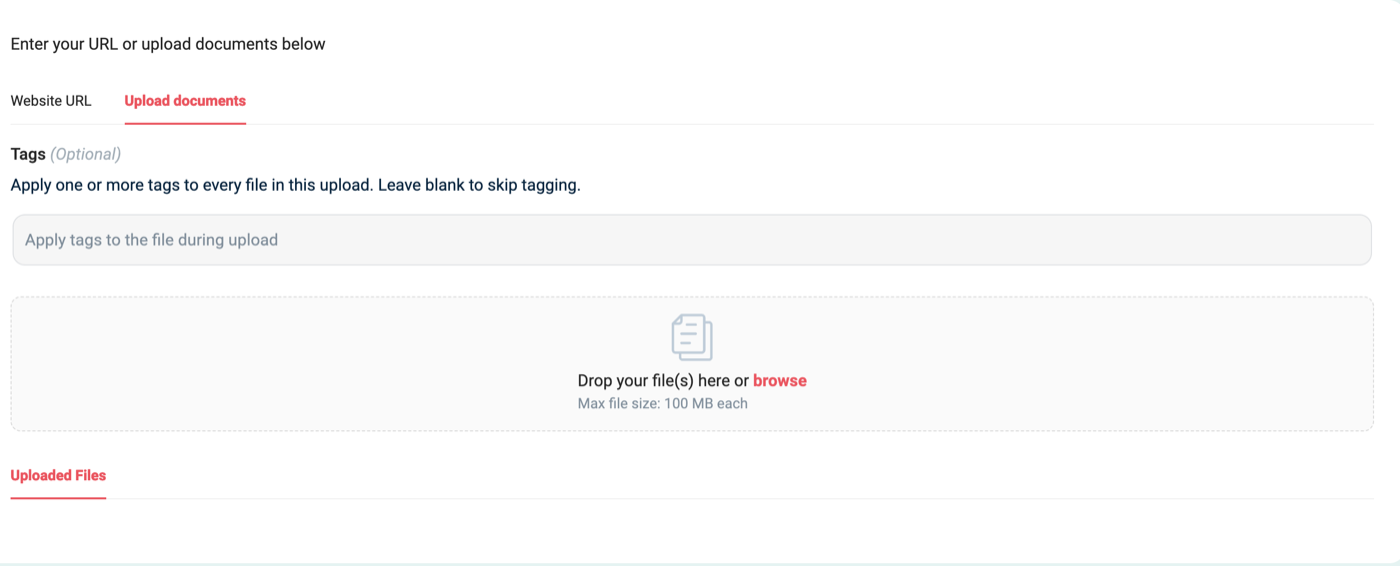
- Select Upload documents.
- Under Tags (Optional), add tags if you want the uploaded files grouped for later filtering.
- Leave tags blank if the files should be available without a tag.
- Use Drop your file(s) here or browse Max file size: 100 MB each to upload approved files.
- Review uploaded files under Uploaded Files.
Accepted file extensions are c, cpp, docx, html, java, json, md, pdf, php, pptx, py, rb, tex, and txt.
4. Maintain existing sources
Use the source lists at the bottom of the tab to keep material current. These row actions only appear after at least one website page or file has been added.
| Source type | How to maintain it |
|---|---|
| Website pages | In Uploaded URLs, use Refresh now when the page has changed and should be captured again. |
| Website pages | Use the delete icon when a captured URL should no longer be used. |
| Uploaded files | In Uploaded Files, use Upload an updated version when a document changes. |
| Uploaded files | Select files and use Add tags to selected files when you want to add tags after upload. |
| Uploaded files | Edit citation details such as source name or source link when citations should show a clearer source. |
| Uploaded files | Use the delete icon when a file should no longer be used. |
5. Test the effect
- In Content > Flows, use Try your live AI.
- Ask questions that should be answerable from the new or updated source.
- If generated responses are enabled, check whether the answer uses the source material correctly.
- If the answer is still wrong, update the source, add a dedicated flow, or adjust AI settings.
Verify
- Captured website pages appear under Uploaded URLs
- Uploaded files appear under Uploaded Files
- The assistant can answer test questions using the new or updated source material
- Outdated pages or files have been refreshed, replaced, or deleted
Common issues
- The website URL is rejected: use a public
https://page and enter the domain or path without thehttps://prefix. - The assistant still uses old website information: select Refresh now for the affected URL, then retest.
- A file is rejected: check the extension and size. Files must use an accepted extension and be no larger than 100 MB each.
- Too many files are selected: upload a smaller batch, then repeat.
- Generated answers ignore the source: confirm generated responses can search uploaded content in AI settings, then retest in Try your live AI.
- A source should not be used anymore: delete the captured URL or uploaded file, then retest.