AI settings
Control where messages come from, how each message is handled, and how AI responses use content, web search, and tools.
Outcome
By the end of this guide you will know how to review, configure, and test the main message-handling settings in EBI's AI Studio:
- Channels: where user messages can be received from
- User Message Journey: the order used to handle each message
- Pattern matching: reusable patterns for finding and optionally redacting values in user messages
You do not need to change every setting. Review the areas that match how your assistant should receive and answer messages.
Prerequisites
- You can sign in to EBI's AI Studio
- You have permission to edit AI settings
- You have at least one flow if you want messages to trigger a flow or use a selected flow for response generation
- You have added information sources if you want AI-generated responses to use uploaded content or website content
Some settings are only shown when your plan or role includes them. If you do not see a setting, check with your EBI account team before assuming it is unavailable to all users.
Steps
1. Open AI settings
- In the top navigation, select AI settings.
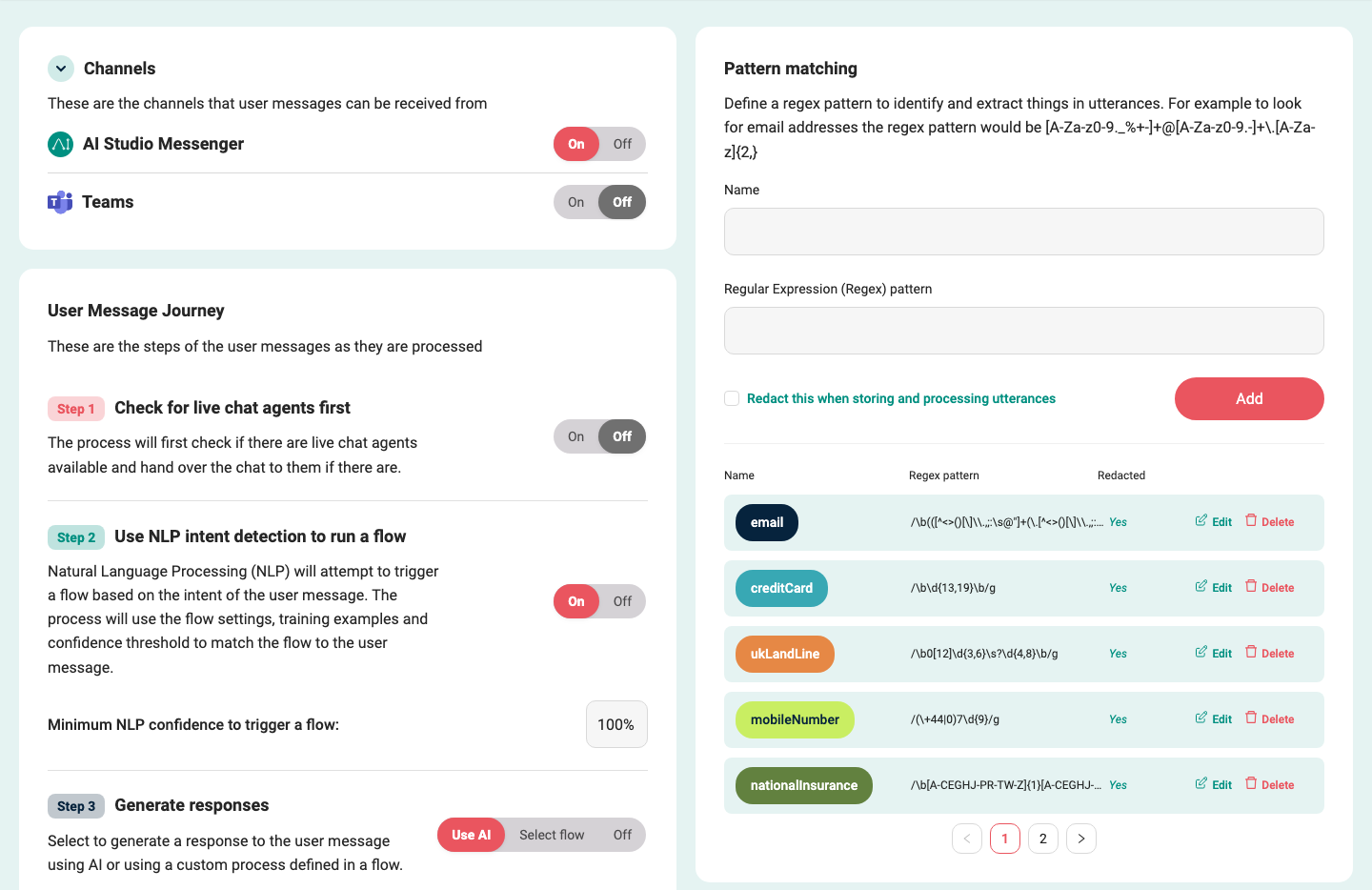
- Review the three main areas on the page:
- Channels
- User Message Journey
- Pattern matching
2. Configure Channels
Use Channels to choose where user messages can be received from.
AI Studio Messenger controls the web assistant used inside EBI's AI Studio and on your website. Leave it On if you want users to talk to the assistant through the web messenger.
Teams controls Microsoft Teams messages. When Teams is On, EBI's AI Studio shows:
- Point your Teams settings to this webhook:
- App ID
- App password
Use those values when setting up the Microsoft Teams app connection. For the full channel setup, see Microsoft Teams.
If additional channel cards appear in your account, configure only the channels you plan to support and test each channel before launch.
3. Configure User Message Journey
User Message Journey is the ordered process EBI's AI Studio uses for each incoming message. A step that is Off is skipped.
Step 1: Check for live chat agents first
Use On when a live chat agent should be offered before automated handling. If a suitable agent is available, the conversation can be handed over to live chat.
Use Off when messages should continue through the automated journey without this first live chat check.
Step 2: Use NLP intent detection to run a flow
Natural Language Processing (NLP) is a general software technique for interpreting text. In this setting, Use NLP intent detection to run a flow lets EBI's AI Studio compare the user's message with flow settings and training examples.
When this step is On, review Minimum NLP confidence to trigger a flow. A higher value makes flow triggering stricter. A lower value makes flow triggering more likely, but can increase incorrect matches.
Step 3: Generate responses
Choose what happens when the message reaches response generation:
- Use AI: generate a response using AI.
- Select flow: use a selected flow as the custom process for the response.
- Off: do not generate a response at this step.
If you choose Select flow, choose the flow from Select a flow.
4. Configure AI response options
When Generate responses is set to Use AI, extra response-generation settings appear. Which panels appear depends on your plan and permissions.
Response generation instructions
Use Response generation instructions to tell the AI how to answer. This is the place for guidance such as tone, limits, business rules, and what the assistant should avoid.
Select Save after editing the instruction text.
Allow AI to search uploaded content
Turn Allow AI to search uploaded content On when generated responses should use uploaded documents or other saved content.
If you need to narrow which uploaded content can be searched, turn Metadata filter On, select a field, choose an operator, and enter one or more values. Use additional filters when the assistant should only search specific tagged files, source names, or source links.
Common fields include:
- Tags
- File name
- File ID
- Source name
- Source link URL
You can also configure Show citations for content used. A citation is a source reference shown with an answer so users can see what content was used. If citations are enabled, set Citation text: to the label you want users to see.
Allow AI to search web
Turn Allow AI to search web On when generated responses should be able to search web pages.
Use these options to control the search:
- Search context size: choose Low, Medium, or High.
- User location: set Country, Region, City, and Timezone if location should influence search results.
- Domain filtering: enter domains that should be searched.
- Show citations for pages used: choose whether responses should show page citations.
For domain filtering, enter domain names such as example.com. EBI's AI Studio formats URLs into domain names. Do not paste secret URLs or links containing access tokens.
Allow AI to use tools
Turn Allow AI to use tools On when generated responses should be able to use configured tools.
Tools allow the AI assistant to interact with connected systems, perform tasks, or retrieve information. Only add tools that are safe for the assistant to use in customer conversations.
If no tools are enabled, the page shows The AI will not be able to use tools.
Remote MCP Server
A Remote MCP Server is a tool server that uses the Model Context Protocol, a standard way for an assistant to connect to external tools and data sources.
When Remote MCP Server is available and On, configure:
- MCP Server Name
- MCP Server Description
- MCP Server URL
- MCP Server Auth access token
- Allowed Tools
Use Save when the access token field is shown. After a token is stored, EBI's AI Studio masks it. Use Change if you need to replace the token.
Do not paste secrets into screenshots or docs examples. If you add an access token, treat it as sensitive.
Advanced
Open Advanced for model and generation controls. Depending on your plan and selected model, you may see:
- Select Large Language Model (LLM)
- Reasoning effort
- Verbosity
- Preambles
Model labels can change over time. Choose the model based on the label shown in the product, then test the assistant after changing it.
5. Configure the remaining journey steps
Some remaining steps are disabled until generated responses are available.
Step 4: Show generated responses directly to the user
Use On when generated AI responses should be shown directly to users.
Use Off when you do not want generated responses shown directly.
Step 5: Create flows from generated responses
Choose what EBI's AI Studio should do with generated responses:
- Publish: create flows and publish them immediately.
- Draft: create draft flows for review.
- Off: do not create flows from generated responses.
Step 6: Ask user for feedback
Use On when the assistant should ask users for feedback after responses.
Use Off when feedback prompts should not be shown.
6. Configure Pattern matching
A regular expression, also called a regex, is a text pattern used to find values such as email addresses, reference numbers, or account numbers.
Use Pattern matching to define reusable regex patterns for user messages.
- Enter a Name.
- Enter a Regular Expression (Regex) pattern.
- Select Redact this when storing and processing utterances if the matched value should be hidden in stored conversation data.
- Select Add.
Existing patterns are listed with Name, Regex pattern, and Redacted. If you have permission, you can use Edit or Delete.
If the pattern list is paginated, a newly added pattern may appear on another page. Use the pagination controls below the list if you do not see the pattern immediately after selecting Add.
If you cannot see the form or the edit controls, your role or plan may not include pattern management.
7. Check related redaction settings in flows
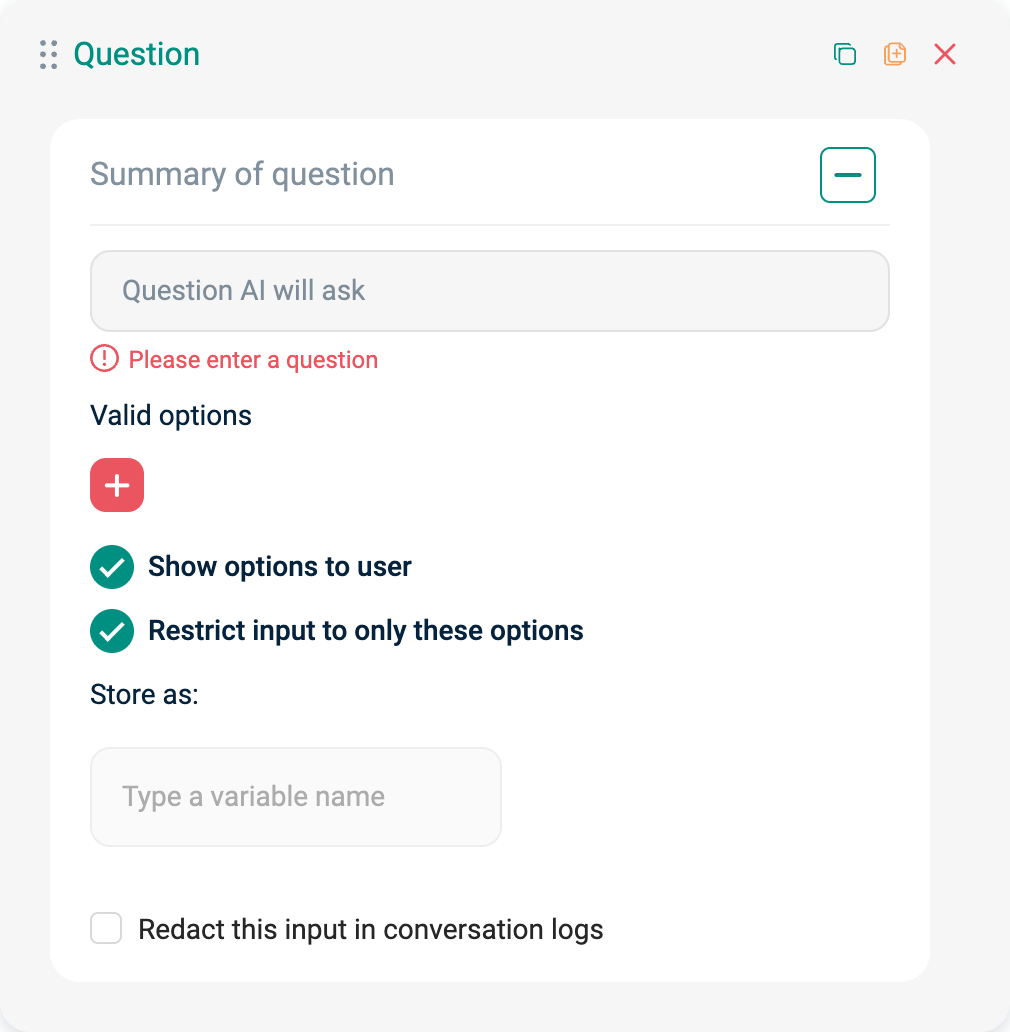
Pattern matching redaction is managed in AI settings. If you capture user inputs using an Ask a question bubble, there is a separate redaction setting in the flow editor.
- In a flow, add or select an Ask a question bubble.
- Enable Redact this input in conversation logs.
8. Save and test your changes
Many AI settings save as you toggle them or leave a field. Some controls, such as Response generation instructions and credential fields, have their own Save button. Use the explicit Save button whenever one is shown.
After changing AI settings:
- In the top navigation, select Content.
- Select Flows.
- In Try your live AI, select Reset chat.
- Send a test message.
- Check that the assistant follows the expected journey.
Try your live AI is in Content > Flows. It is not shown on the AI settings page.
Verify
- Channels shows the channels you expect to use.
- User Message Journey has the correct On and Off settings.
- A test message triggers live chat, a flow, a selected flow, or an AI response as expected.
- If citations are enabled, generated responses show the expected citation label.
- If pattern redaction is enabled, matched values are hidden in stored conversation data.
- If you changed a channel or credential, send a test message through that channel or connection.
Common issues
- A channel is not working: confirm the channel is On, then test from the external channel rather than only from Try your live AI.
- A flow does not trigger: lower Minimum NLP confidence to trigger a flow, add training examples, or check that the flow is published.
- Live chat never triggers: confirm Step 1: Check for live chat agents first is On and at least one agent is online in Live chat.
- AI does not use uploaded content: turn Allow AI to search uploaded content On, then check any Metadata filter conditions.
- AI does not search the web: turn Allow AI to search web On, then check Domain filtering.
- A web search domain is removed or reformatted: enter domain names only, such as
example.com, rather than full URLs. - The assistant cannot use a tool: turn Allow AI to use tools On and confirm the connector or tool is installed and selected.
- A regex match does not work: test the regex against an example message and confirm it matches the value you want to extract.
- A pattern does not appear after you select Add: check whether the pattern list has another page.
- You cannot find Try your live AI: go to Content > Flows.
- You cannot see certain options: your plan or role may not include them.