Live chat operations
Set up live chat teams, handle conversations, monitor performance, and review history in EBI's AI Studio.
Outcome
By the end of this guide you will be able to:
- Set agents online so they can receive chats
- Use Chat to handle live conversations
- Use Dashboard and History to monitor live chat activity
- Add agents and manage invitations in Teams
- Configure working hours and maximum chats in Settings
Prerequisites
- You can sign in to EBI's AI Studio
- Live chat is available in your plan
- You have at least one user who should act as an agent
Steps
1) Open Live chat
- In the top navigation, select Live chat.
- Confirm you can see the top tabs: Chat, Dashboard, Teams, History, Settings.
If a Welcome! prompt opens, select Got it!. If the next prompt is Notifications, select Turn on, then respond to the browser permission prompt. If you block notifications in the browser, live chat can still work, but agents may miss new-chat alerts.
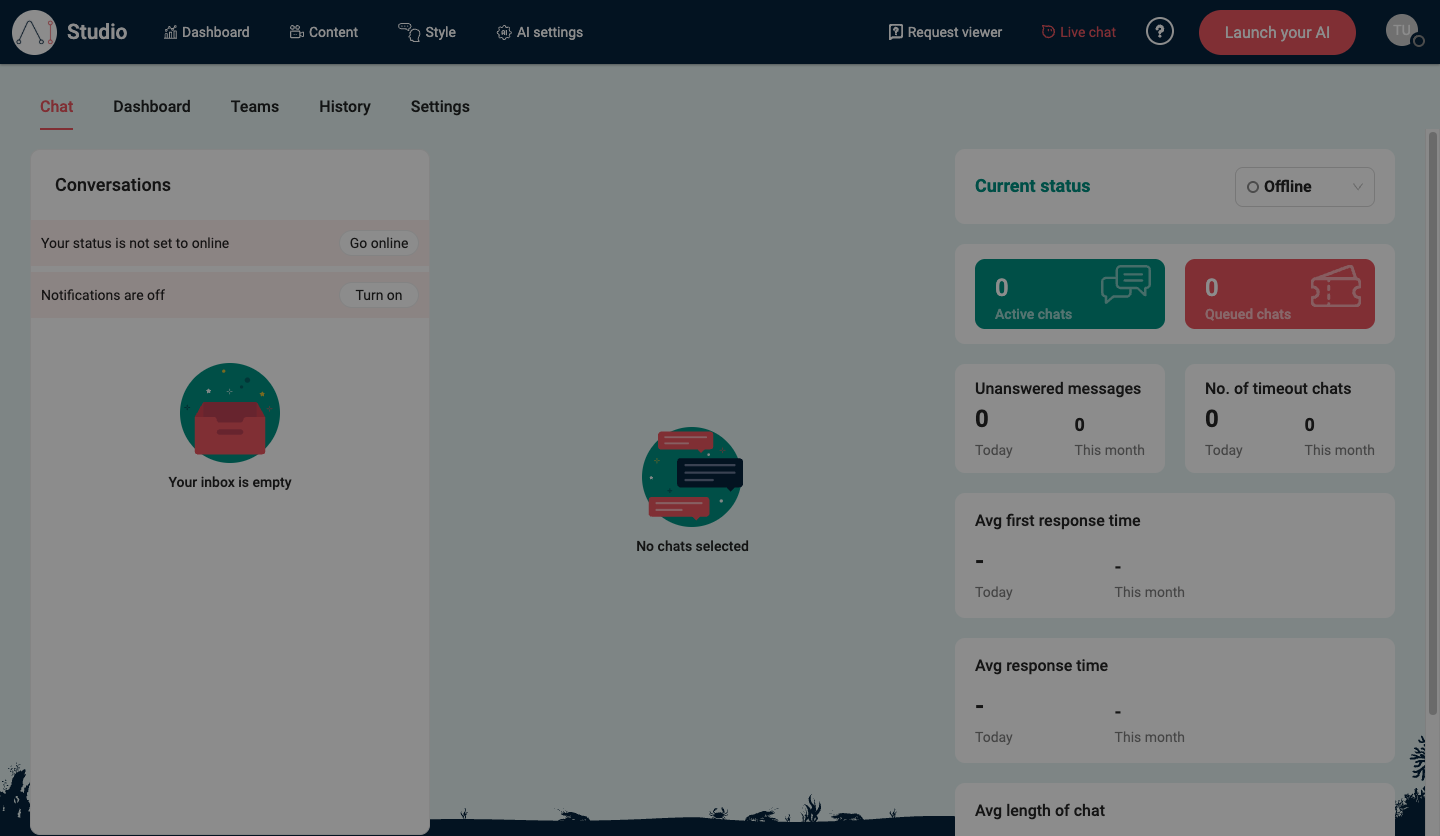
Use the tabs like this:
- Chat: handle active and queued chats.
- Dashboard: monitor live chat activity and performance.
- Teams: manage agents, invitations, and team status.
- History: review completed, transferred, unanswered, and timed-out chats.
- Settings: configure working hours and maximum chats per agent.
2) Go online (required)
- In the Chat tab, find Conversations.
- Select Go online.
- (Recommended) If you see Notifications are off, select Turn on.
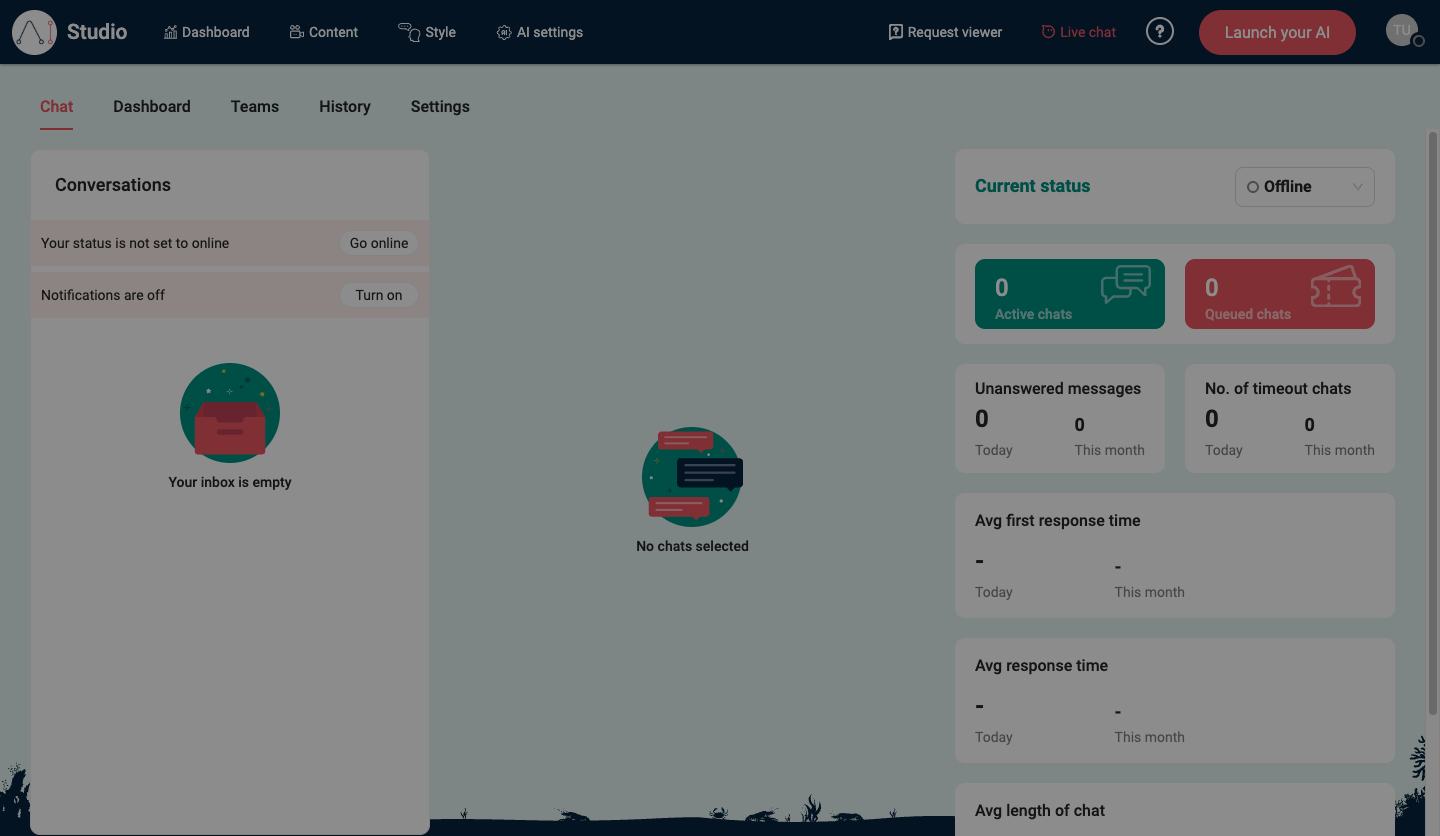
The Chat tab is where agents work day to day. It shows the agent's current status, active chats, queued chats, unanswered messages, timeout chats, average response time, and average length of chat. If no chat is selected, the centre panel shows No chats selected.
Agents should stay online during the hours when they are expected to answer chats. Working hours can make a team available, but an agent still needs to be online to receive chats.
3) Monitor the Dashboard
- Select the Dashboard tab.
- Use All teams or choose a specific team.
- Review the live chat widgets:
- Chats received
- Current chats
- Queued chats
- AI to agent handovers
- Avg first response time - Last 30 days
- Avg response time - Last 30 days
- Avg chat duration time - Last 30 days
- Unanswered messages - Last 30 days
- Number of chats
- Busiest time of day - Last 30 days
- Busiest day of the week - Last 30 days
Use Dashboard for an operational view while live chat is running. Use History when you need to investigate a specific completed chat.
The Dashboard is useful even when volumes are low because it separates live workload, handovers, response times, unanswered messages, and busy periods.
4) Add team members
- Select the Teams tab.
- Select the team you want to manage.
- Select Add member.
- In Email, add one or more agents.
- Select Add member.
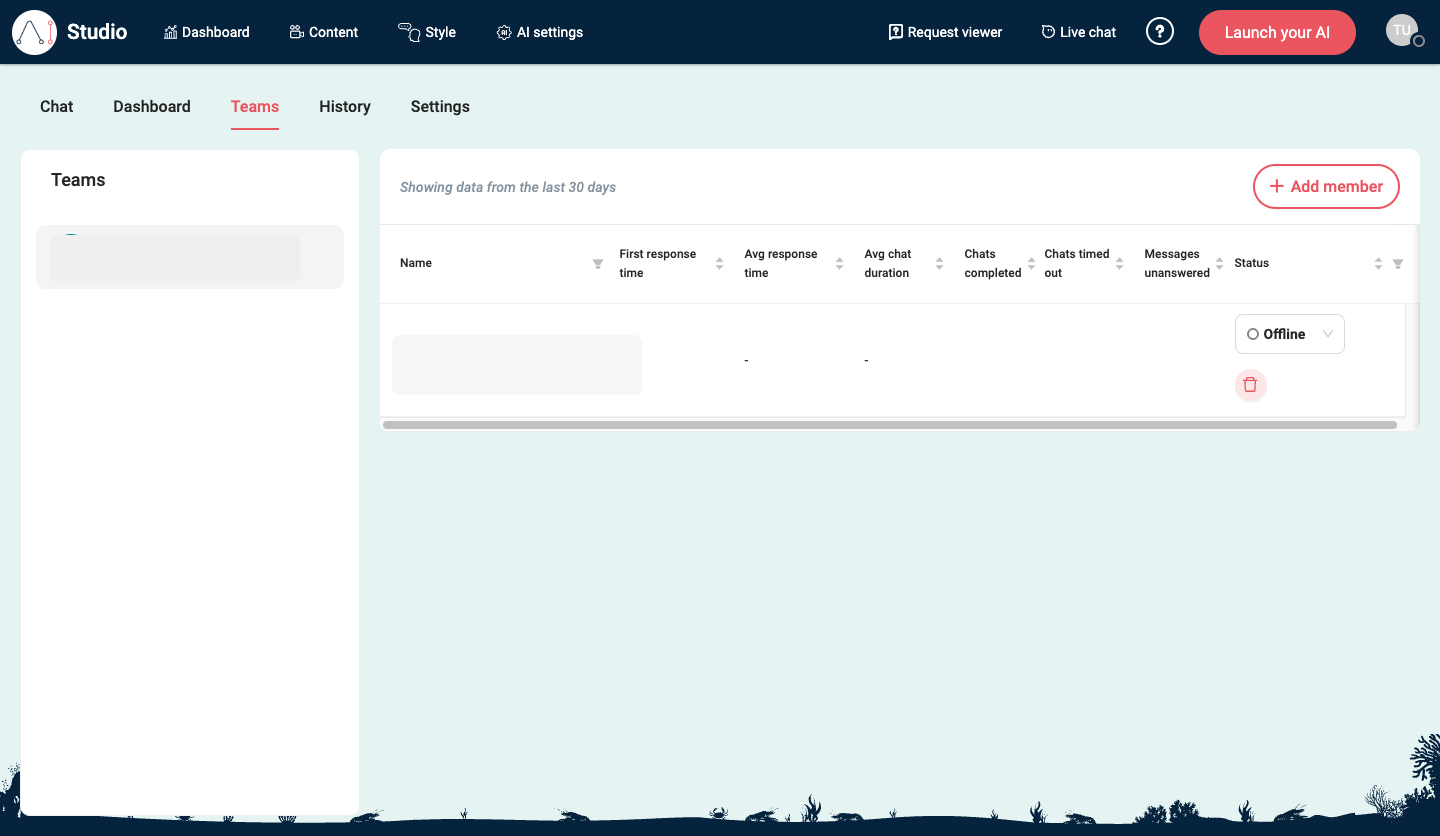
If the person is already a member of EBI's AI Studio, they can be added to the team. If they are not a member yet, EBI's AI Studio invites them by email. The invitation appears as Invited user with Pending until the recipient completes the confirmation email and sets their password.
5) Review History
- Select the History tab.
- Use Chat started: to choose a start date and end date.
- Use the time-of-day filter when you need to narrow the results.
- Review the summary cards:
- Count of chats
- Avg first response time
- Avg response time
- Avg live chat duration
- Use the table to investigate individual chats.
The history table includes Date time chat started, Team name, Initial agent, First response time, Avg response time, Total length of chat, Chat transferred Y/N, Unanswered message Y/N, and Chat timed out Y/N. The table is wide, so you may need to scroll horizontally to see later columns and the transcript download icon.
Select a table row to preview the conversation. Use the download icon when you need a transcript for a deeper review.
6) Set working hours and chat limits
- Select the Settings tab.
- Under Working hours, set:
- Timezone
- Availability
- Select a day, then use Edit time to set the start and end time.
- Select Update.
- Select Live chat settings.
- Under Set user maximum chats, set the maximum number of chats an agent can have at once.
- Select Update or Set.
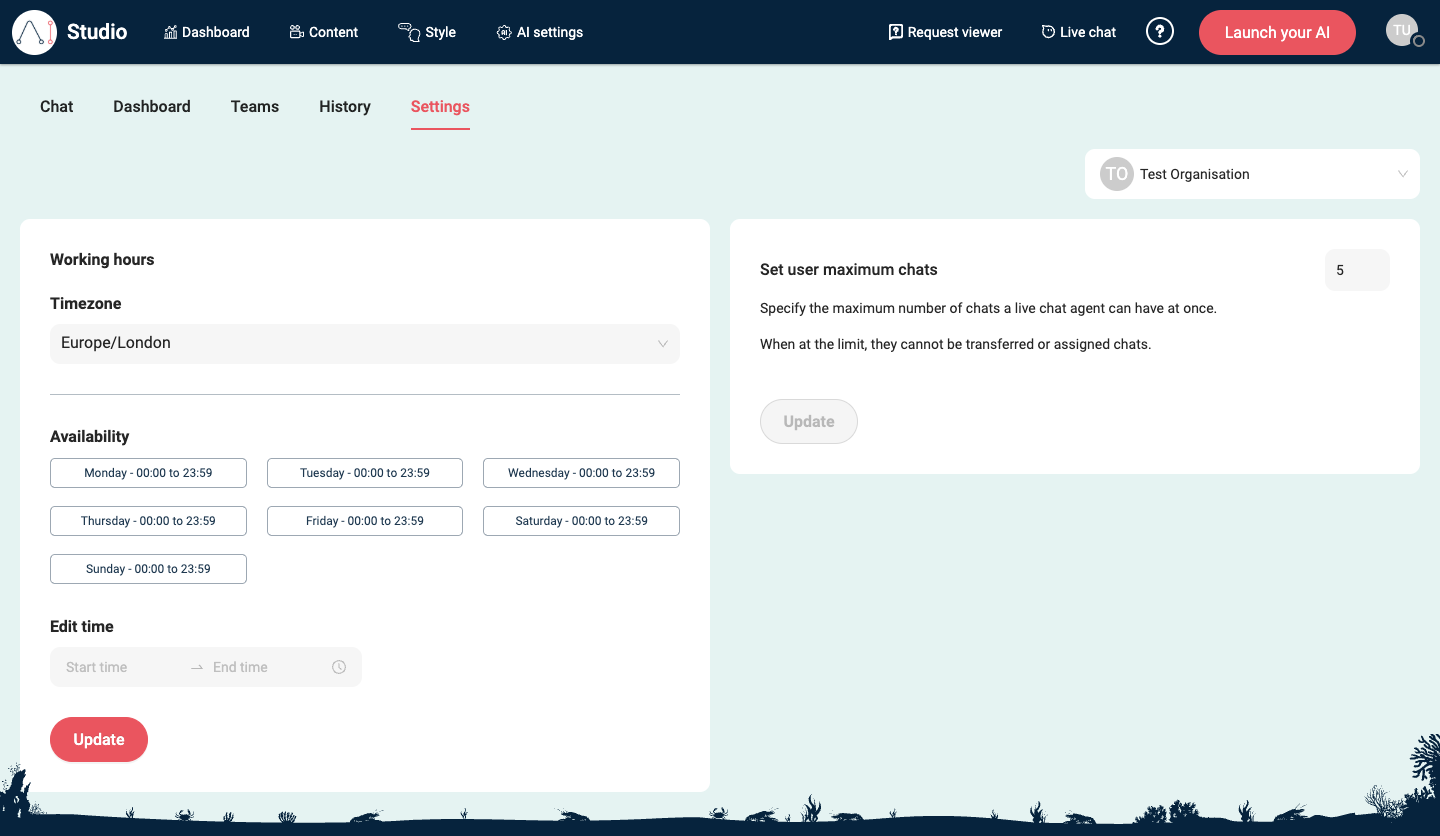
When an agent reaches their maximum number of chats, they cannot be transferred or assigned more chats. The maximum chat value must be between 1 and 50.
7) Review AI settings
- In the top navigation, select AI settings.
- Under User Message Journey, review Step 1: Check for live chat agents first.
Tip: The exact handover behaviour can vary by plan and configuration. If you need help tuning when handovers happen, contact your EBI account team.
Verify
- Set at least one agent to online.
- Confirm the agent is in the right team.
- Confirm the team's Working hours cover the current time.
- Open Web Messenger on your website (incognito/private window recommended) and start a conversation.
- Trigger a handover to a live chat agent.
- Confirm the chat appears under Live chat → Chat.
- Complete the chat or let it time out.
- Check History to confirm it appears with the expected transferred, unanswered, or timed-out state.
Common issues
- Your inbox is empty: ensure an agent is online (Go online) and your handover behaviour is enabled/configured.
- Agents don’t receive chats: check Teams membership, working hours, agent status, and maximum chat limits.
- The agent is available but still misses chats: check that browser notifications are turned on and that the agent has not reached their maximum number of chats.
- Chats time out or go unanswered: review History for Unanswered message Y/N and Chat timed out Y/N, then adjust staffing, working hours, or automation coverage.
- Notifications stay blocked: enable notifications in your browser settings, then return to Live chat.
- Dashboard shows no data: choose All teams, widen the date range in related history checks, and confirm live chats have actually completed.
- Invited users remain pending: ask the recipient to check the confirmation email and finish setting their password.
Agent best practices
- Keep at least one agent online during advertised hours.
- Keep browser notifications enabled during shifts.
- Review Dashboard during the day and History after a shift.
- Use Chat transferred Y/N, Unanswered message Y/N, and Chat timed out Y/N to spot staffing or automation gaps.
- Track common handover reasons to improve automation coverage.