Build
Create your AI assistant
Create your first set of flows and training sources in EBI's AI Studio.
Outcome
By the end of this guide you will have a working first version of your AI assistant, including:
- At least a few key flows (your top FAQs / top tasks)
- One or more information sources (website and/or documents)
Prerequisites
- You can sign in to EBI's AI Studio
- You have a website URL and/or documents you trust (optional but recommended)
- You have a short list of your top customer questions (recommended)
Steps
1) Add your website (optional)
- In the top navigation, select Content.
- Select Information sources.
- Under Website URL, enter your site into Your website URL.
- (Optional) Select Include child pages.
- Select Capture website content.
2) Upload documents (optional)
- In Information sources, select Upload documents.
- (Optional) Add upload-wide tags in Tags (Optional).
- Select Drop your file(s) here or browse Max file size: 100 MB each and upload your files.
3) Create your first flows
- In the top navigation, select Content.
- Select Flows.
- Select Create new flow.
- In Create new flow, choose Create flow from scratch, then select Next.
- Use Add bubble to choose the steps the flow needs.
- Create 5–10 starter flows covering your top questions and tasks.
Use Import flow only when you already have a flow file to upload.
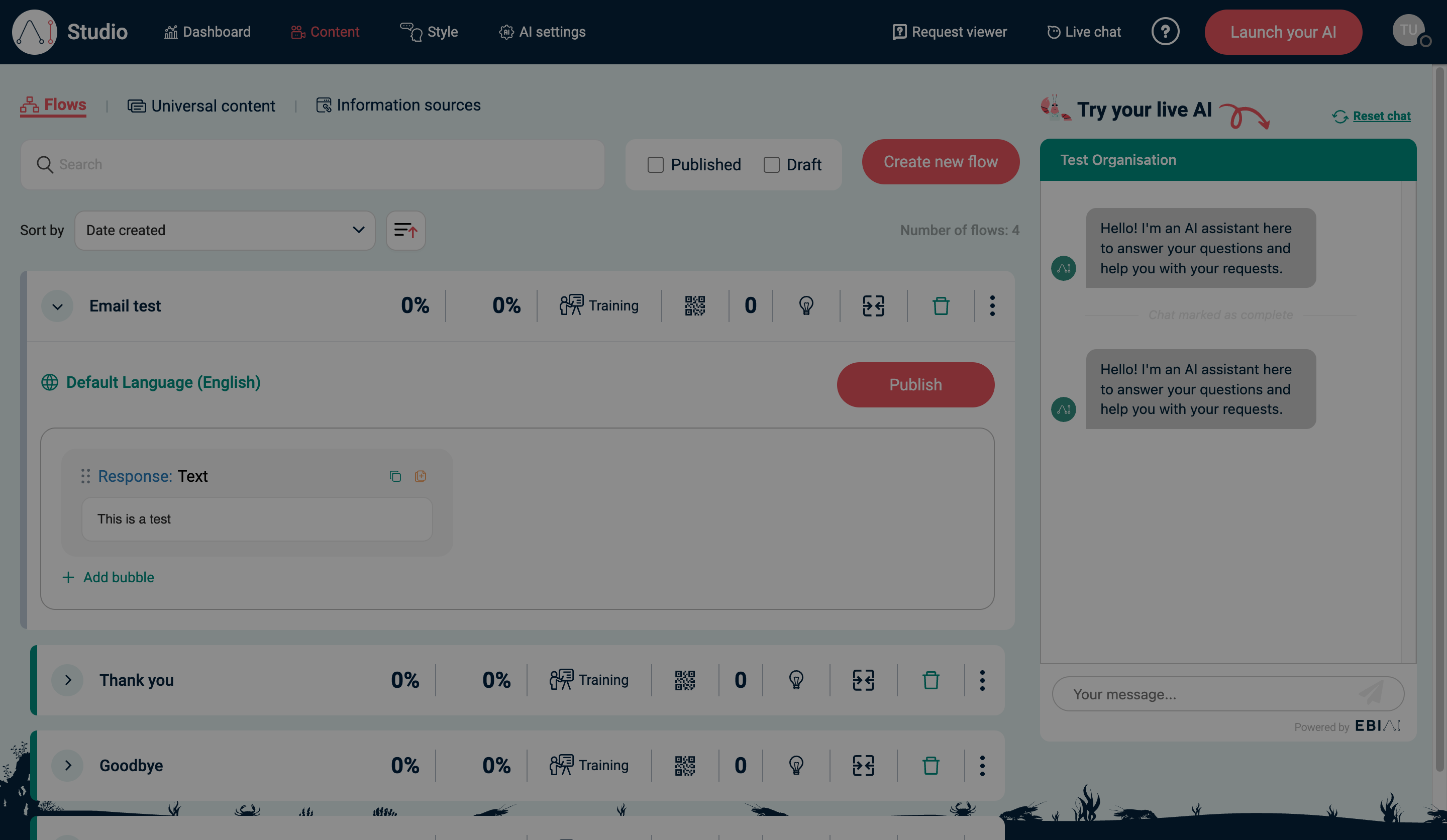
Good starter flow topics:
- “What are your opening hours?”
- “How do I reset my password?”
- “How do I contact support?”
- “What’s your returns policy?”
Verify
- You can see your new flow(s) in Content → Flows
- In Try your live AI, you can ask a question and get the expected response
Common issues
- Nothing new appears after “Capture website content”: try again with Include child pages off, or upload documents instead.
- The AI answers with the wrong policy/process: add a dedicated flow for that question or upload a clearer source document.