First-run setup
Create your account, add your website, and reach your first generated assistant.
Outcome
By the end of this guide you will have created your account, added your website details, passed the welcome screens, and reached the first assistant workspace.
Prerequisites
- You have the sign-up link for EBI's AI Studio
- You can access the email inbox you will use for the account
- You have your organisation name
- You have a public homepage URL, if you want EBI's AI Studio to create starter content for you
- You are using a desktop browser
Steps
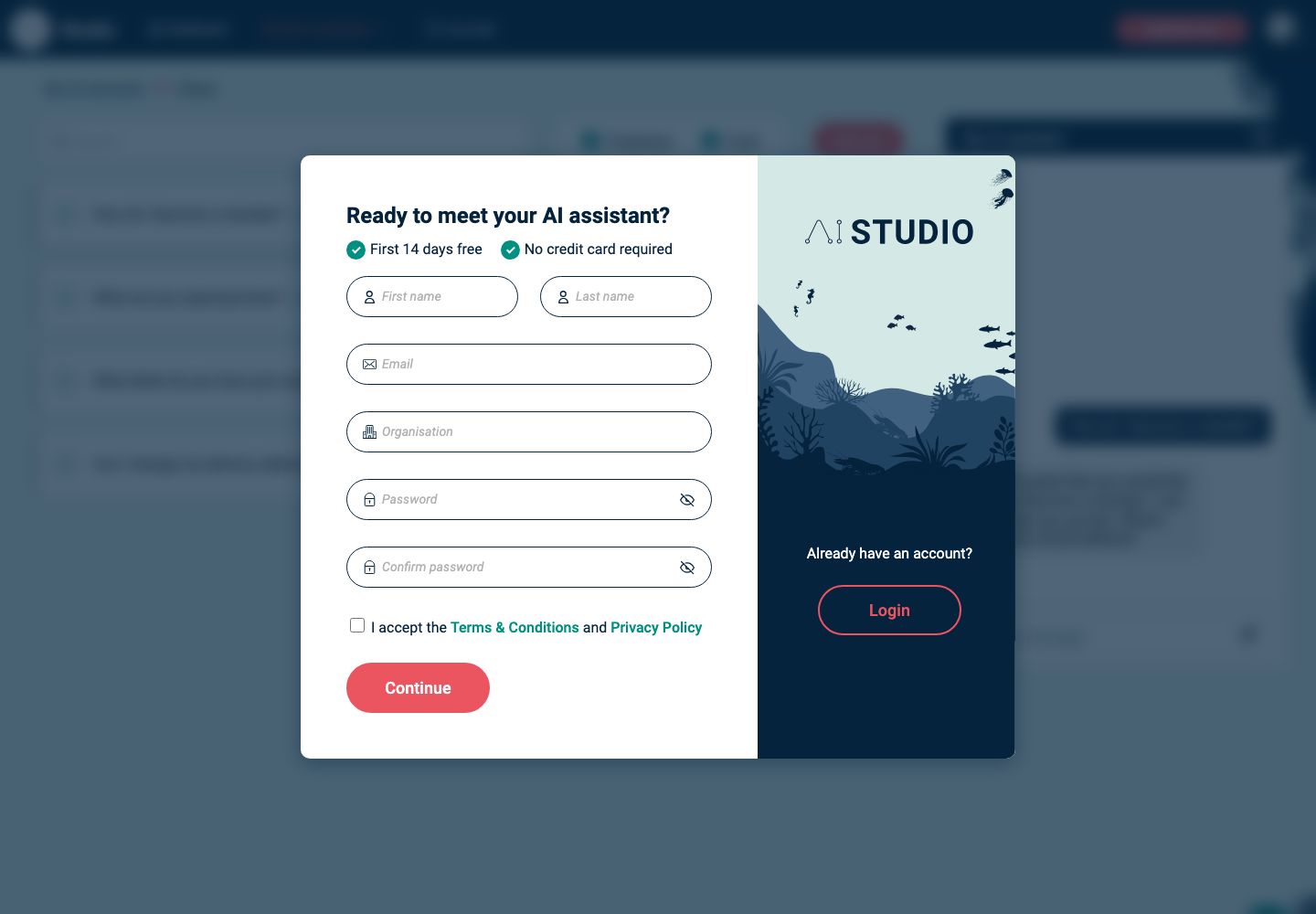
1. Enter your account details
- Open your EBI's AI Studio sign-up link.
- On Ready to meet your AI assistant?, enter:
- First name
- Last name
- Organisation
- Password
- Confirm password
- Select the terms and privacy checkbox.
- Select Continue.
2. Enter your homepage URL
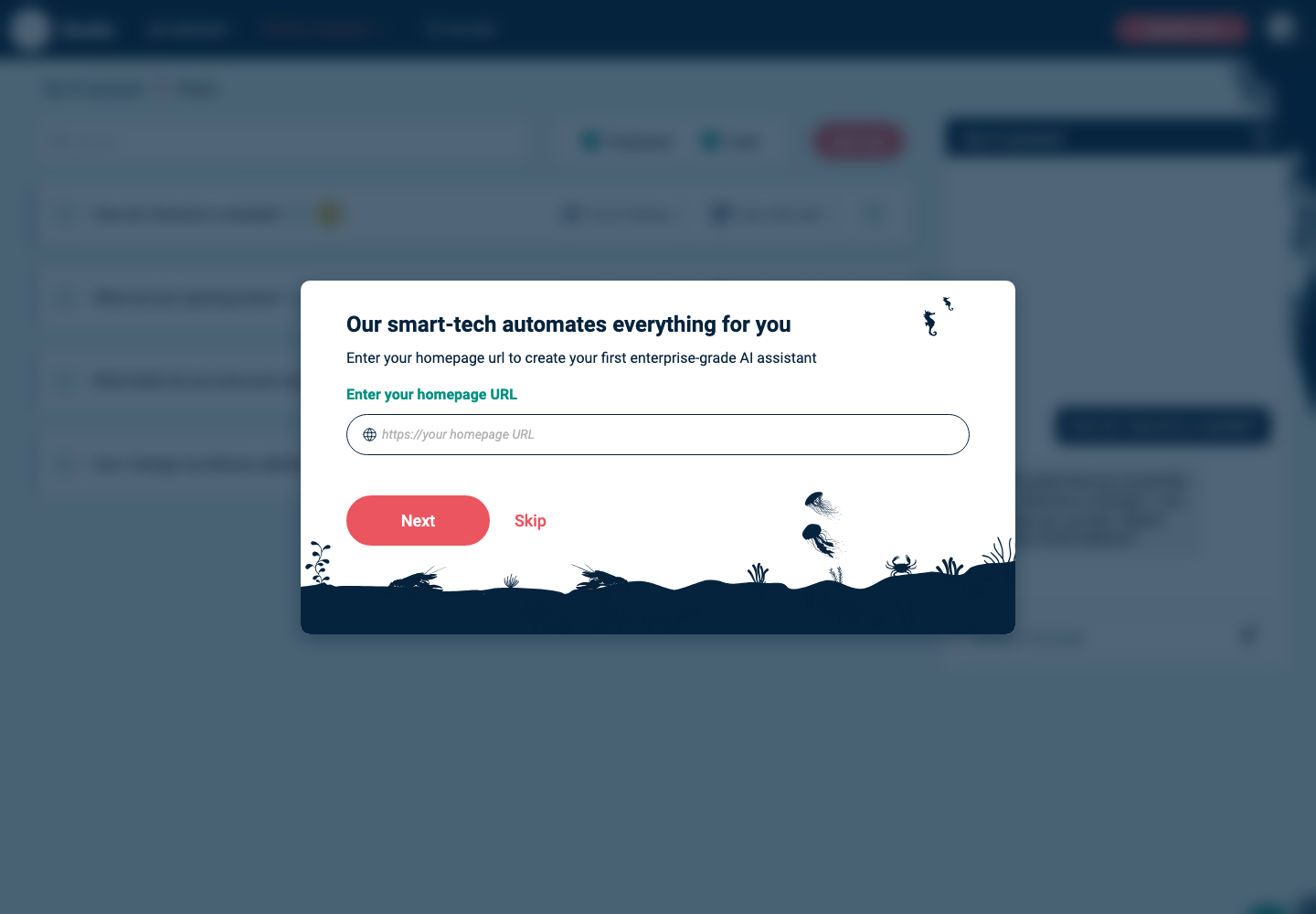
- On Our smart-tech automates everything for you, enter your homepage into Enter your homepage URL.
- Select Next.
If you do not want to add a website during setup, select Skip. You can add website content later from Content > Information sources.
3. Choose your industry and website visitors
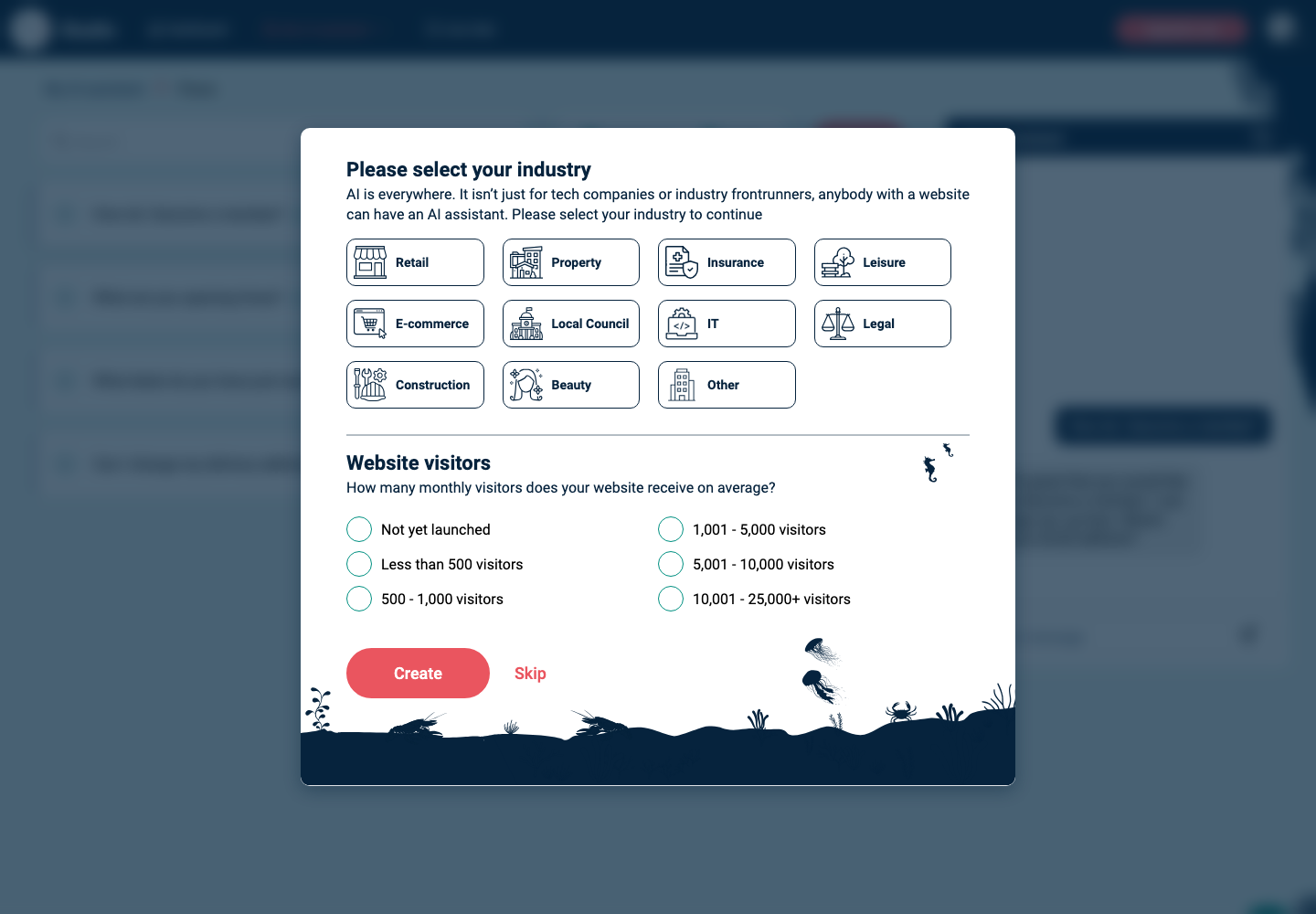
- Under Please select your industry, choose the option closest to your organisation.
- Under Website visitors, choose your average monthly website visitor range.
- Select Create.
You can also select Skip if you do not want to answer these questions during setup.
4. Enter your authentication code
- Check your email for the authentication code.
- On Authentication code, paste or type the code into the code boxes.
- Select Submit.
If the code has expired or does not arrive, select Resend code and use the newest email.
5. Read the welcome screens
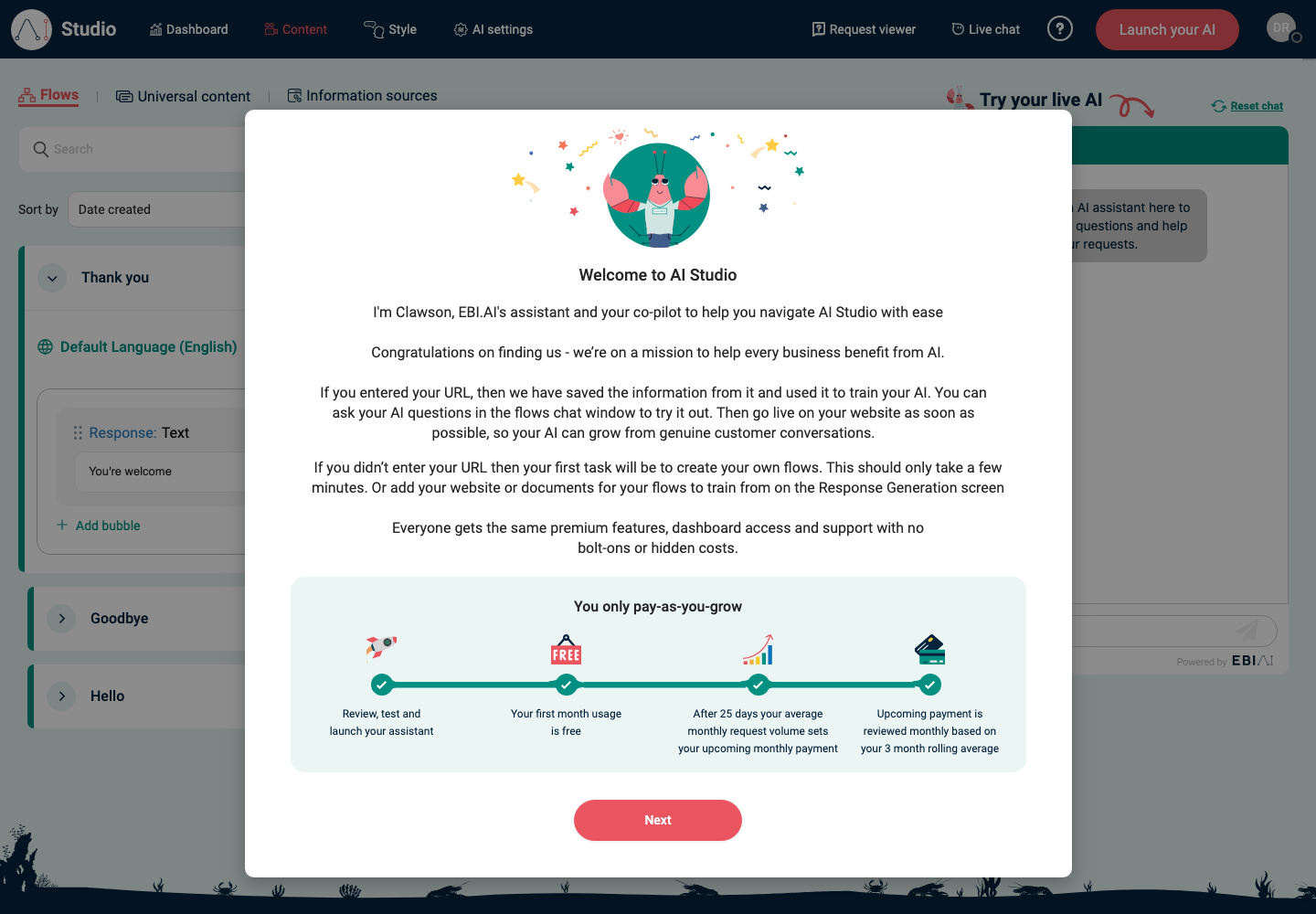
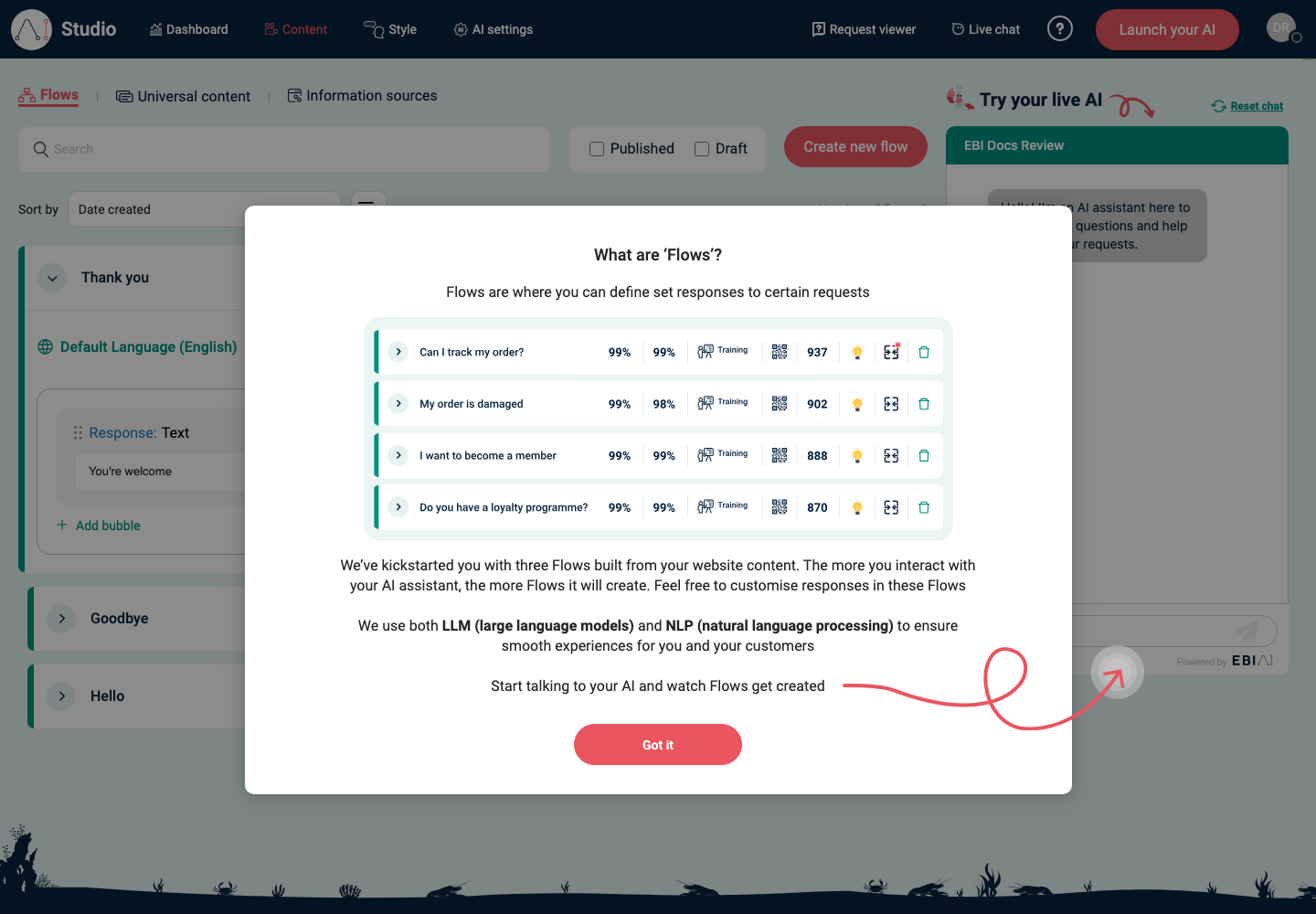
When you first reach Content > Flows, EBI's AI Studio opens Welcome to AI Studio.
- Read the setup summary.
- Select Next.
- Read What are ‘Flows’?.
- Select Got it.
6. Start auto-generation if prompted
If you see New! Share your URL and create your very own AI driven customer assistant in less than 5 minutes, enter your homepage into Your website URL, then select Start now.
The field already shows https://, so enter the domain only, for example example.com.
Verify
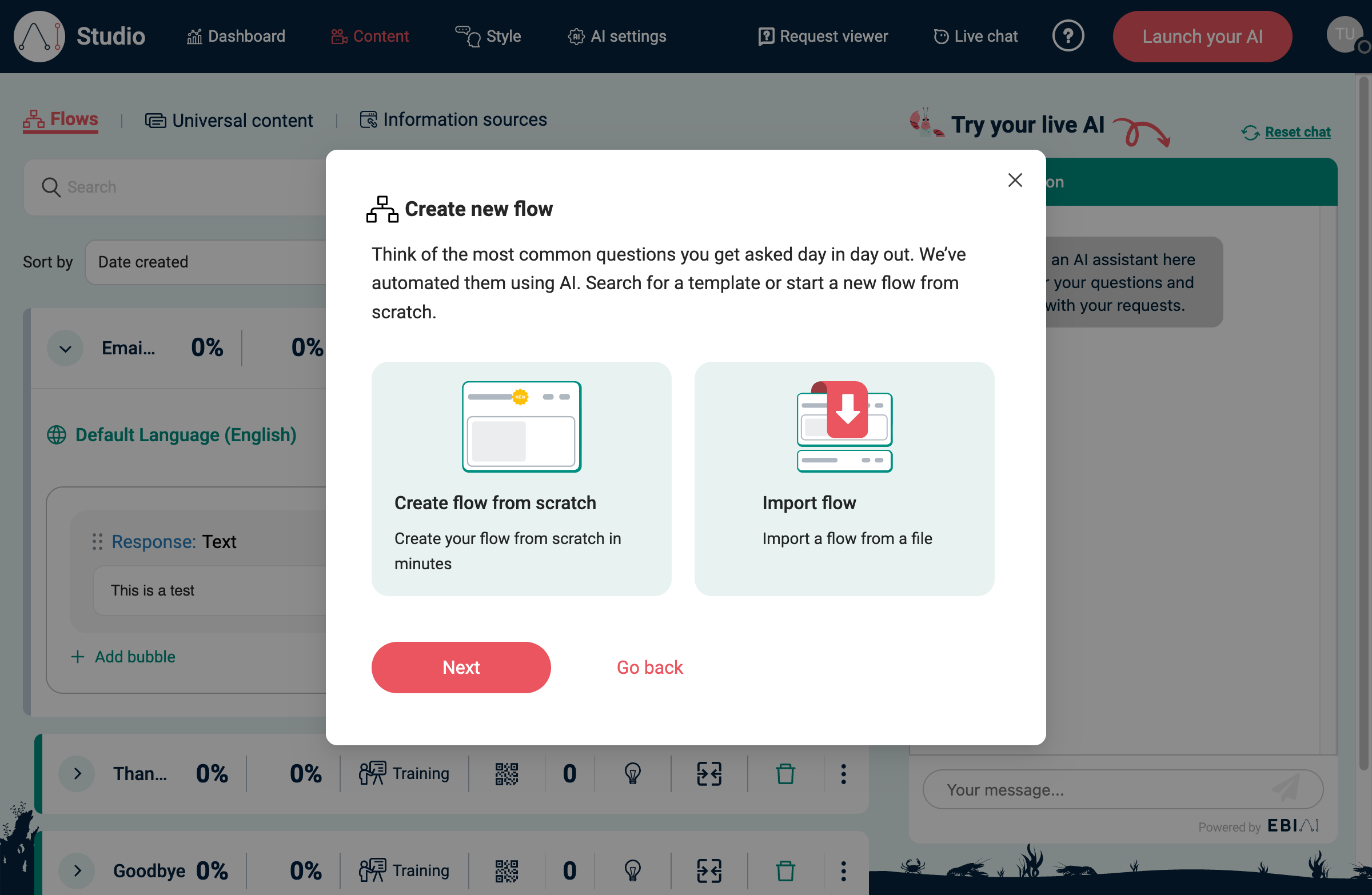
- You can open Content > Flows
- You can see the starter flows or an empty flows list
- Try your live AI is available on the right side of the flows workspace
- If you entered a homepage URL, the assistant can start using your website content once generation has completed
Common issues
- The sign-up link opens the login page: select Sign up.
- The email address is rejected: enter the address in lowercase.
- The password is rejected: use at least 12 characters, including lowercase, uppercase, a number, and a special character.
- The authentication code is rejected: select Resend code, then enter the newest code from your email.
- The homepage URL is rejected during first-run setup: use a public
https://website with a normal domain name. - The auto-generation URL is rejected: enter only the domain because the field already includes
https://. - You signed up on mobile: EBI's AI Studio is optimised for desktop. If you entered a website URL, wait for generation to finish, then continue from a desktop browser.