Measure & improve
Auto-generation
Generate starter flows from your website and refine them quickly.
Outcome
By the end of this guide you will have used auto-generation to create starter flows from your website, ready to review and publish.
Prerequisites
- You can sign in to EBI's AI Studio
- You have a public website URL you trust (homepage recommended)
- Your plan includes auto-generation (if you don’t see it, see Common issues)
Steps
1) Start auto-generation from your website
- In the top navigation, select Content.
- Select Flows.
- If prompted, under New! Share your URL..., enter your homepage into Your website URL.
- The field includes
https://, so enter just the domain (for exampleexample.com).
- The field includes
- Select Start now.
2) Review and refine the generated flows
- In Content → Flows, open each flow and review the Response content.
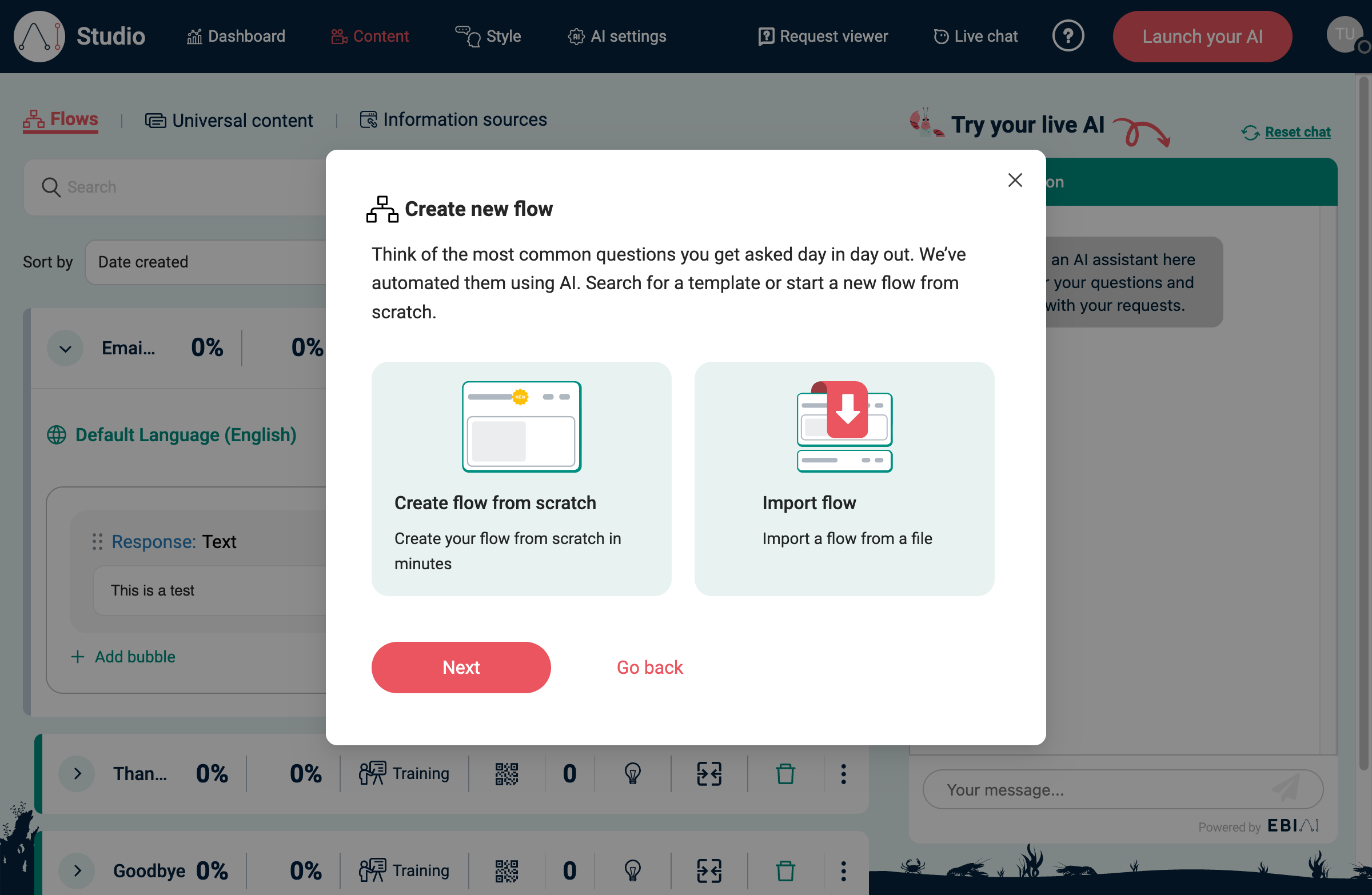
- Add missing answers using Create new flow.
- When you’re ready to make changes live, select Publish.
Verify
- You can see new flows in Content → Flows
- In Try your live AI, you can ask questions and see answers based on your flows
Common issues
- You don’t see the auto-generation prompt: it may be plan-dependent or only shown in certain onboarding states. You can still:
- Add a website under Content → Information sources → Website URL and select Capture website content
- Create flows manually under Content → Flows
- “We are unable to process this URL. Please enter a different URL.”: enter just the domain (don’t include
https://), and use a public homepage URL. - Generated answers are incorrect: edit the flow response, add missing flows, and/or upload better sources under Information sources.