Measure & improve
AI Agent handover
Hand over a conversation to an AI Agent in a flow (plan-dependent).
Outcome
By the end of this guide you will be able to add Handover to an AI Agent to a flow, and understand the key agent options for content search, tools, web search, and Remote MCP servers.
Prerequisites
- You can sign in to EBI's AI Studio
- Your plan includes AI Agents (if you don’t see the option, contact your EBI account team)
Steps
1) Add an AI Agent bubble to a flow
- In the top navigation, select Content.
- Select Flows.
- Open the flow you want to update.
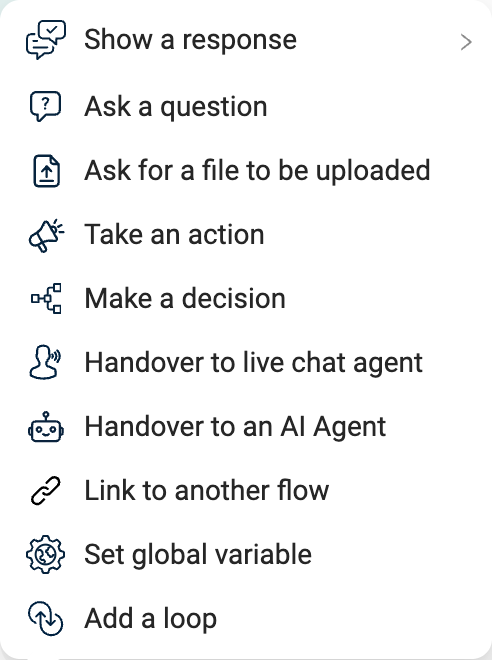
- Select Add bubble.
- Select Handover to an AI Agent.
2) Configure the agent (plan-dependent)
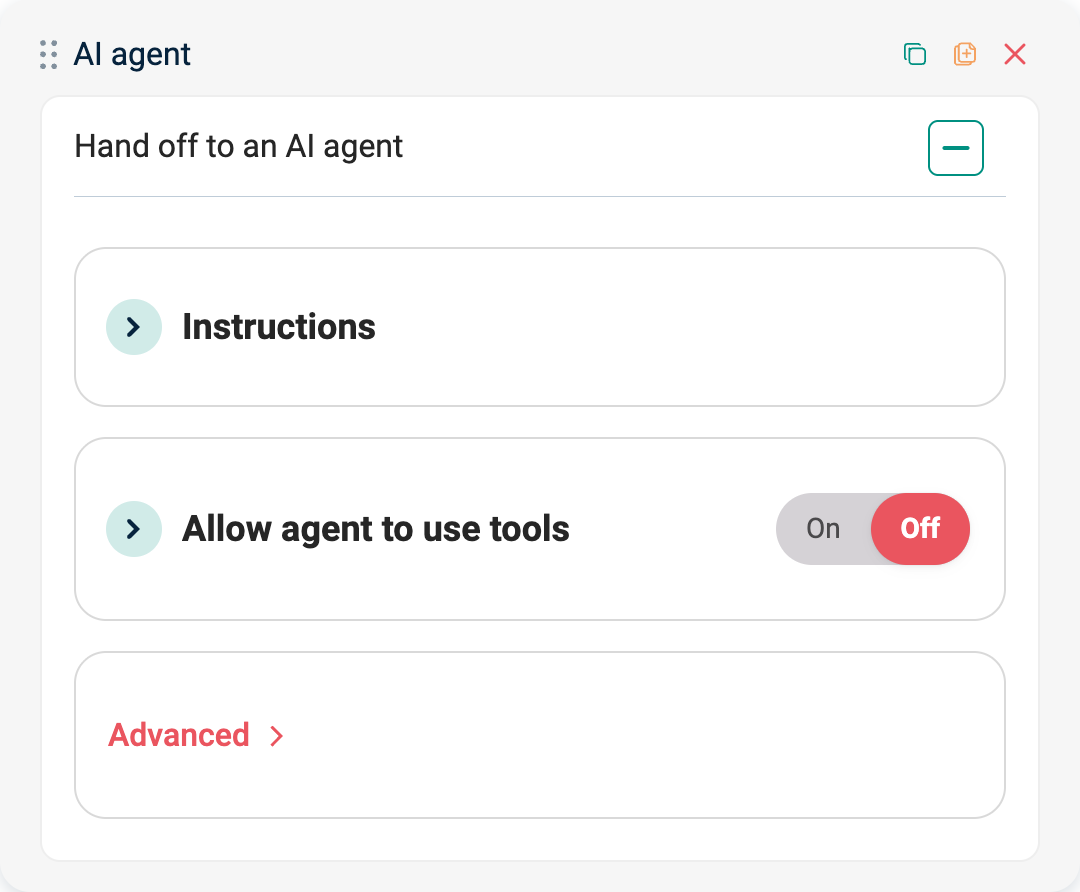
Inside the AI Agent bubble you may see options such as:
- Allow agent to search content
- Allow agent to use tools
- Allow agent to search the web
- Remote MCP servers
If you don’t see an option, your plan may not include it.
Use Allow agent to search content to control what source material the agent can use:
- On: allow the agent to search available assistant content.
- Select: choose specific content for this AI Agent bubble.
- Off: do not let the agent search content.
When Select is enabled, use Select content to choose existing content, or Add AI agent specific content to upload content for this agent handover.
3) (Optional) Connect tools
If you see a Connect button next to a tool, use it to connect/install the tool before testing.
4) Test and publish
- Use Try your live AI to test the flow.
- Select Publish.
Verify
- Send a test message that should reach the agent handover step.
- Confirm the agent responds as expected (and uses tools/web search only when enabled).
Common issues
- You can’t see “Handover to an AI Agent”: your plan may not include AI Agents.
- The agent doesn’t use tools: confirm Allow agent to use tools is enabled and any required tools are connected.
- The agent does not use source content: confirm Allow agent to search content is enabled, and use Select content if the agent should only search specific files.
- Web search doesn’t happen: confirm Allow agent to search the web is enabled (if available).