Flow-building patterns
Combine flow bubbles to collect information, branch journeys, reuse flows, upload files, run actions, and repeat steps.
Outcome
By the end of this guide you will know which flow bubbles to combine for common advanced flow jobs.
A Flow-building pattern is a repeatable way to arrange flow bubbles to complete a user job. Use these patterns after you understand the basic bubble types in the Flow bubble reference.
Prerequisites
- You can sign in to EBI's AI Studio
- You have permission to edit Flows
- The flow exists in Content > Flows
- You understand what information the flow needs from the user
Pattern 1: Ask a question and reuse the answer
Use this pattern when the assistant needs to collect a value, then use it later in the flow.
- In the top navigation, select Content.
- Select Flows.
- Open the flow you want to update.
- Select Add bubble.
- Select Ask a question.
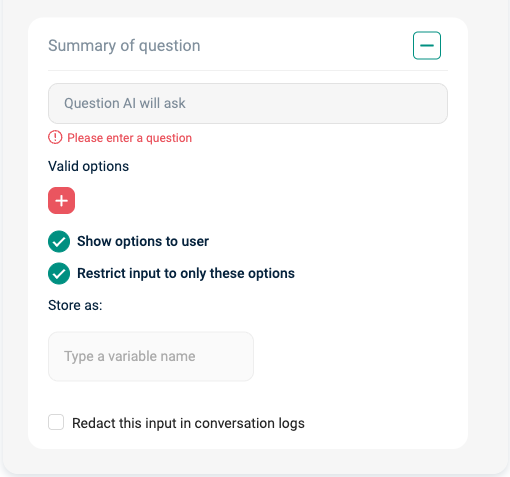
- In Question AI will ask, write the question the user should see.
- Use Valid options if the answer should come from a known set of choices.
- In Store as:, enter a clear variable name.
- Turn on Redact this input in conversation logs if the answer may contain sensitive information.
- Add a later response, decision, action, or loop that uses the stored value.
Use Show options to user when users should see the choices. Use Restrict input to only these options when the flow should reject answers outside the choices.
Pattern 2: Branch a flow with a decision
Use this pattern when the next step depends on a stored answer or returned value.
- Add the bubble that collects or creates the value, such as Ask a question, Take an action, or Set global variable.
- Select Add bubble.
- Select Make a decision.
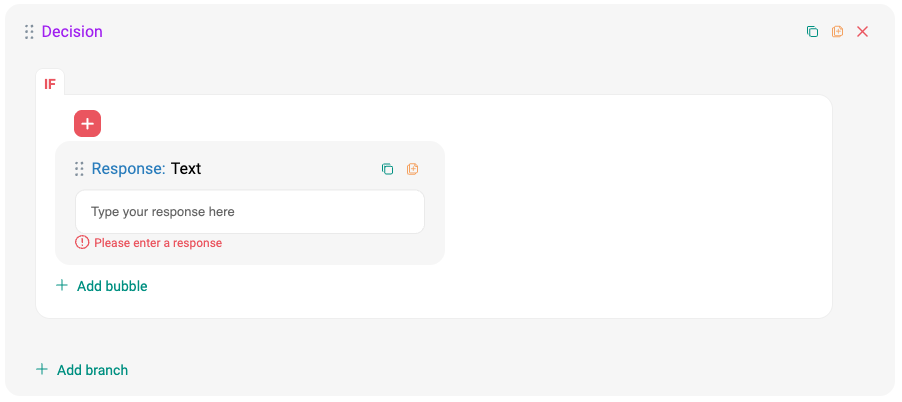
- In IF, choose the value to check.
- Choose an operator such as
=,>,<,!=, or CONTAINS. - Enter the value to compare against.
- Add bubbles inside the IF branch.
- Use Add branch when you need ELSE IF or ELSE handling.
- Test each branch in Try your live AI.
Use AND when all conditions must be true. Use OR when any condition can be true.
Keep branch wording narrow. If a branch depends on a user answer, prefer a question with clear Valid options before the decision.
Pattern 3: Reuse a published flow
Use this pattern when several flows need the same journey, such as collecting contact details or showing a standard handover message.
- Build and publish the flow you want to reuse.
- Open the flow that should include the reusable journey.
- Select Add bubble.
- Select Link to another flow.
- In Link to flow, select Choose a flow.
- Choose the published flow.
- Test the parent flow from the start, not only the linked section.
Linked flows are best for journeys that should stay consistent across the assistant. If the reused section needs different wording in each place, copy or duplicate bubbles instead.
Pattern 4: Collect a file from the user
Use this pattern when the user needs to upload a document during the conversation.
- Select Add bubble.
- Select Ask for a file to be uploaded.
- Check the visible Upload document file-size limit.
- In Returns:, enter the variable name that should store the uploaded file value.
- Add the next bubble that explains what happens after the upload.
- Test with a safe test file before publishing.
Do not ask users to upload sensitive files unless the journey really needs them and your support process can handle them safely.
Pattern 5: Run an action and use the result
Use this pattern when the flow needs to call another system, such as creating a ticket, checking a record, or submitting a form.
- Confirm the connector is available and authorised.
- Select Add bubble.
- Select Take an action.
- Choose the connector.
- In Event, choose the operation to run.
- Complete the required parameters.
- In Returns:, enter a variable name for the result.
- Add a response or decision after the action.
- Test a successful case and a failure case before publishing.
Only send the data the external system needs. If the action uses values collected earlier in the flow, test with realistic but safe values.
Pattern 6: Set a global variable
Use this pattern when the flow needs to set a reusable value directly, instead of asking the user for it.
- Select Add bubble.
- Select Set global variable.
- In Value, enter the value to store. You can include earlier stored values where the editor offers them.
- In Store as:, enter or choose the variable name.
- Use the variable in a later response, decision, action, or loop.
Use this for values the flow knows, such as a selected product area, a routing category, or a normalised label.
Pattern 7: Repeat steps with a loop
Use this pattern when the flow should repeat a set of nested bubbles while a condition remains true.
- Select Add bubble.
- Select Add a loop.
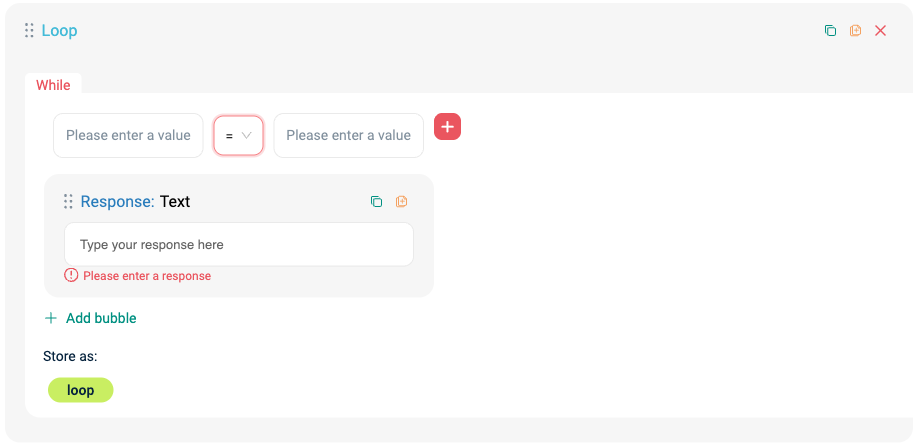
- In While, choose the value and condition that control the loop.
- Add the bubbles that should repeat inside the loop.
- In Store as:, store the loop output if later steps need it.
- Add a clear way for the condition to stop being true.
- Test the loop with the shortest path and the longest expected path.
Loops can be harder to reason about than decisions. Use a loop only when repeated steps are genuinely needed.
Verify
- Each stored value has a clear Store as: name.
- Every Make a decision branch has been tested.
- Linked flows are published before they are reused.
- File upload and action results have a follow-up message or branch.
- Loops have a clear stopping condition.
- The full flow works in Try your live AI after you select Reset chat.
Common issues
- A decision never reaches the expected branch: check the stored value name and the condition operator.
- A linked flow is not available: publish the flow you want to reuse, then try Choose a flow again.
- An uploaded file is not available later: check the variable name in Returns:.
- An action cannot run: check connector authorisation, required parameters, and the value saved in Returns:.
- A loop repeats too many times: add or change the step that updates the loop condition.
- A bubble type is missing: your plan, role, or current flow context may not include it.