Flow bubble reference
Choose the right bubble type when building a flow in EBI's AI Studio.
Definition
A flow bubble is one step in a flow. Flow bubbles appear in the flow editor and are added with Add bubble.
Use this reference when you are choosing which type of bubble to add to a user journey.
When to use it
Use the Add bubble menu when a flow needs to:
- send a response
- ask the user for information
- collect a file
- make a decision
- hand over to live chat or an AI agent
- reuse another flow
- store a value
- repeat a set of steps
Some options are only available when your plan and role include them. If an option is disabled, hidden, or marked with an upgrade icon, check with your EBI account team before assuming it is available to every user.
How it works
- In the top navigation, select Content.
- Select Flows.
- Open an existing flow or select Create new flow.
- In the flow editor, select Add bubble.
- Choose the bubble type that matches what the assistant should do next.
- Complete the visible fields for that bubble.
- Test the flow in Try your live AI.
- Select Publish when you are ready to make the change live.
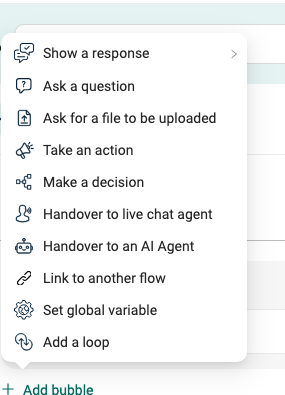
Bubble types
| Add bubble option | Use it when | Main fields to check |
|---|---|---|
| Show a response / Text | The assistant should send a simple text response. | The text response. Empty responses show Please enter a response. |
| Show a response / Card | The assistant should send a richer card, such as a short item with a title, supporting text, and link. | Card title, subtitle, image, Link Name, and Link URL. |
| Show a response / Button | The assistant should send text plus one web link button. | Title, Link Name, and Link URL. The URL must be valid. |
| Ask a question | The assistant should ask the user for information and store the answer for later use. | Summary of question, Question AI will ask, Valid options, Store as:, and Redact this input in conversation logs. |
| Ask for a file to be uploaded | The user needs to upload a file during the conversation. | Upload document, the visible file-size limit, and Returns:. |
| Take an action | The flow should run a connector operation in another system. | Connector, event, parameters, and the returned value. This option may require a plan or role that includes action bubbles. |
| Make a decision | The flow should branch based on a stored answer or value. | IF, ELSE IF, ELSE, branch conditions, and the bubbles inside each branch. |
| Handover to live chat agent | The assistant should pass the conversation to a live chat agent or team. | Connection status, Team, and Target:. Use this at the point where automated handling should hand over. |
| Handover to an AI Agent | The flow should pass control to an AI agent with its own instructions, content, tools, and model settings. | Instructions, content access, web search, tools, model, and advanced model settings. This option may require a plan or role that includes AI agent bubbles. |
| Link to another flow | You want to reuse an existing published flow instead of rebuilding the same journey. | The flow selected in the chooser. |
| Set global variable | You need to set a value that later bubbles can reuse. | Set value for variable and Store as:. |
| Add a loop | The flow should repeat a set of nested bubbles while a condition remains true. | While, the loop condition, the nested bubbles, and the stored loop output. This option may require a plan or role that includes loop bubbles. |
Choosing a bubble
Start with the simplest bubble that completes the job.
- Use Text for clear, fixed answers.
- Use Card or Button when the user needs a link.
- Use Ask a question before Make a decision if the decision depends on something the user says.
- Use Link to another flow for repeated journeys such as contact details, eligibility checks, or handover introductions.
- Use Take an action, Handover to an AI Agent, and Add a loop only when the flow needs that extra behaviour.
Manage existing bubbles
After a bubble has been added, you can manage it from the flow editor.
| Action | How to use it |
|---|---|
| Reorder a bubble | Drag the bubble by its handle and drop it into the new position. |
| Select a bubble | Select the bubble body. Use multi-select keys if you need to select more than one bubble. |
| Copy a bubble | Select the bubble, then use Copy. You can also use the copy icon in the bubble header. |
| Duplicate a bubble | Use the Duplicate icon in the bubble header when you want a second copy immediately after the original bubble. Hover the icon if you need to confirm the tooltip. |
| Remove a bubble | Use the Remove icon in the bubble header when the bubble is no longer needed. Hover the icon if you need to confirm the tooltip. If you remove the last ordinary bubble, EBI's AI Studio adds a default text response so the flow still has content. |
| Select all bubbles | Open the editor context menu and choose Select all. |
| Paste copied bubbles | Open the editor context menu and choose Paste, or use keyboard paste while your pointer is over the editor area. |
Live chat handover bubbles are treated differently from most other bubbles: they can be removed, but they cannot be duplicated from the bubble controls.
Common issues
- A bubble type is missing: your plan, role, or current flow context may not include that bubble type.
- A response will not save: check required fields such as the response text, Link Name, Link URL, or Store as:.
- A decision does not run as expected: confirm the earlier bubble stores the value you are checking.
- A linked flow cannot be selected: confirm the flow you want to reuse is published.
- A live chat handover does not work: confirm live chat is configured and at least one agent or team can receive the handover.
- Paste does nothing: copy one or more bubbles first, then make sure your pointer is over the flow editor before using keyboard paste.