Flow triggers and training examples
Configure when a flow should run, review suggested examples, and improve matching accuracy.
Outcome
By the end of this guide you will know how to configure a Flow trigger, add strong Training examples, review suggested examples from real conversations, and retest matching before publishing.
A Flow trigger is the setup that tells EBI's AI Studio when to run a flow. For chat messages, the trigger uses examples of what users might say and a confidence setting that controls how close the match needs to be.
Prerequisites
- You can sign in to EBI's AI Studio
- You have permission to edit Flows
- The flow exists in Content > Flows
- You know the user request that should trigger the flow
Steps
1. Open the trigger settings
- In the top navigation, select Content.
- Select Flows.
- Find the flow you want to improve.
- Select the icon with the tooltip Control how your flow is triggered.
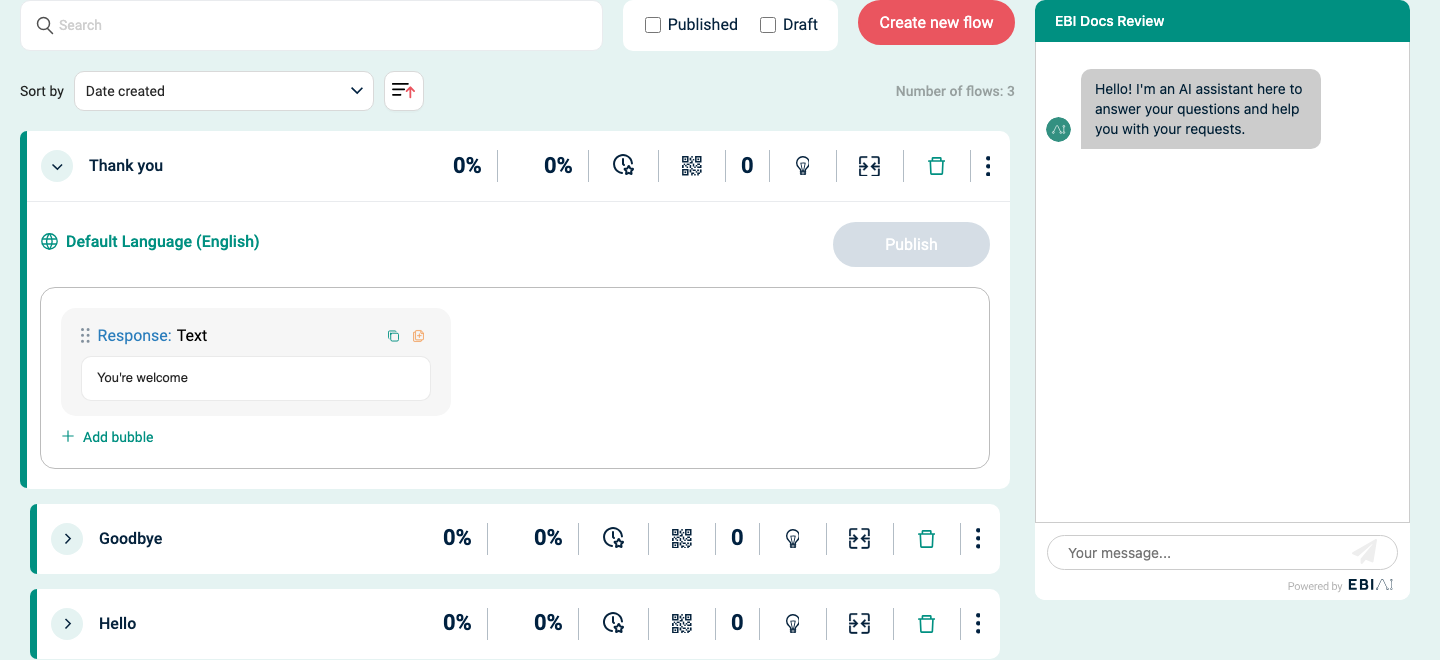
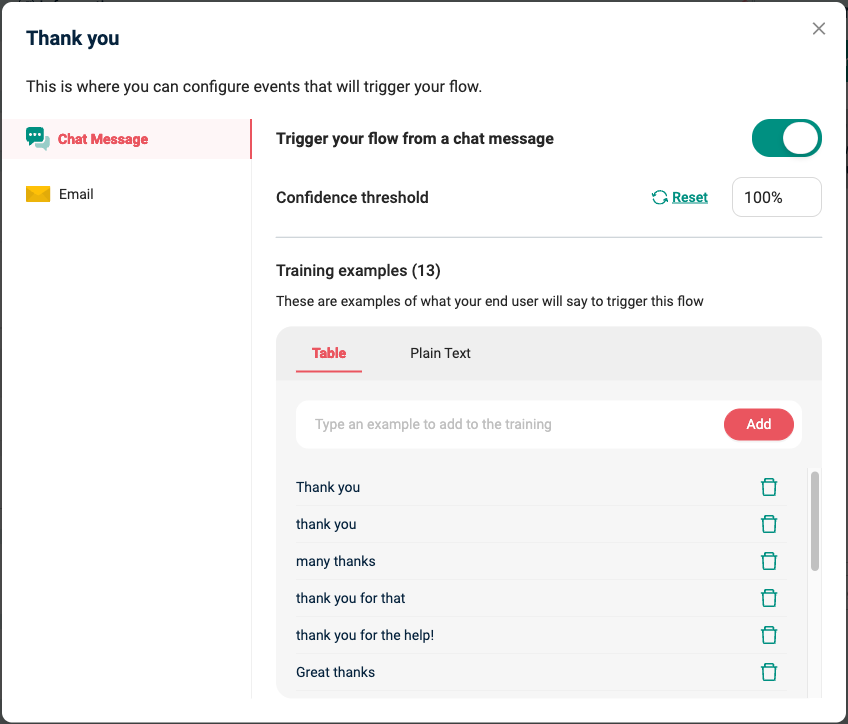
The trigger modal opens with a short explanation: This is where you can configure events that will trigger your flow.
2. Configure the Chat Message trigger
Open Chat Message to control whether normal user messages can trigger the flow.
| Setting | What it controls |
|---|---|
| Trigger your flow from a chat message | Turns chat-message matching on or off for the flow. |
| Confidence threshold | Controls how confident EBI's AI Studio must be before it chooses this flow. |
| Reset | Restores the confidence threshold to the default value for the assistant. |
The Confidence threshold control is shown as a percentage in EBI's AI Studio.
Use a higher Confidence threshold when a flow should run only for very specific wording. Use a lower value only when the flow has broad wording and should be easier to match.
Change this setting carefully. If the value is too low, the flow may run when a different flow would be better. If it is too high, the flow may not run even when the user's request is relevant.
3. Add training examples
Use Training examples for realistic ways a user might ask for the same thing.
- In Training examples, use Table for normal editing.
- In Type an example to add to the training, enter one realistic user message.
- Select Add.
- Repeat until the flow has at least 5 examples.
Good training examples are:
- Realistic user messages, not internal labels.
- Different from each other, but still about the same user goal.
- Short enough to be a normal user request.
- Specific enough to separate this flow from similar flows.
For bulk editing, switch to Plain Text. Enter one training example per line. EBI's AI Studio saves the list when you leave the field.
4. Review suggested examples
If EBI's AI Studio finds real user messages that may belong to the flow, the modal shows Suggested examples from conversation review. This section appears only when suggestions are available from recent conversations.
Each suggested example can show a confidence percentage. Review the wording before adding it.
Use the available actions:
| Action | When to use it |
|---|---|
| Add | The suggested message should train this flow. |
| Reject > Create a new flow | The message is important, but should have its own flow. |
| Reject > Add to another existing flow | The message belongs to a different existing flow. |
| Reject > Discard | The suggestion should not be used for training. |
When you accept a suggestion, EBI's AI Studio can generate additional related examples from the accepted wording.
5. Check overlap with similar flows
Before publishing, check whether the same kind of request could trigger more than one flow.
Look for:
- Two flows with nearly identical titles.
- Training examples that use the same words for different outcomes.
- Broad examples such as "help me" or "I need support" on a specific flow.
- A merge icon on the Flow list, which can indicate similar flows.
If two flows are too similar, move examples to the better flow, create a clearer separate flow, or merge the flows if that is the right outcome.
6. Check the Email trigger if you use it
Open Email only if this flow should start from an email.
Turn on Trigger your flow from an email before expecting to see the generated email address. When enabled, EBI's AI Studio shows an email address for the flow. An email sent to that address will trigger the flow. Use the copy icon to copy the address, or Regenerate if the address needs to change.
Do not publish screenshots or instructions that expose a real generated email address unless it is approved test data.
7. Publish and retest
- Close the trigger modal with the close control.
- Select Publish.
- In Try your live AI, test:
- Exact examples you added.
- Similar wording that should trigger the flow.
- Similar wording that should not trigger the flow.
- Select Reset chat between test cases.
Verify
- Training examples contains at least 5 realistic user messages.
- The flow triggers for the right wording in Try your live AI.
- Similar flows do not steal the same request.
- The flow does not trigger for unrelated requests.
- Suggested examples have been accepted, moved, or rejected.
Common issues
- Publish is disabled: add at least 5 training examples, then try publishing again.
- The wrong flow triggers: compare training examples across the two flows and remove or rewrite overlapping examples.
- The flow does not trigger: add more examples using the wording users actually use, then retest.
- Too many unrelated messages trigger the flow: raise Confidence threshold or make the training examples more specific.
- A suggested example is useful but belongs elsewhere: use Reject > Add to another existing flow.
- You need many examples at once: use Plain Text and enter one example per line.