Flow list
Find, open, sort, publish, duplicate, export, and manage flows from Content.
Outcome
By the end of this guide you will know how to use the Flow list to find existing flows, open the right flow for editing, understand flow card controls, and check draft or published status before testing.
The Flow list is the Content > Flows page. It is where you manage the flows that make up your assistant.
Prerequisites
- You can sign in to EBI's AI Studio
- You have permission to view or edit Flows
- You have at least one flow, or you are ready to create your first flow
Steps
1. Open the Flow list
- In the top navigation, select Content.
- Select Flows.
- Review the list controls at the top of the page.
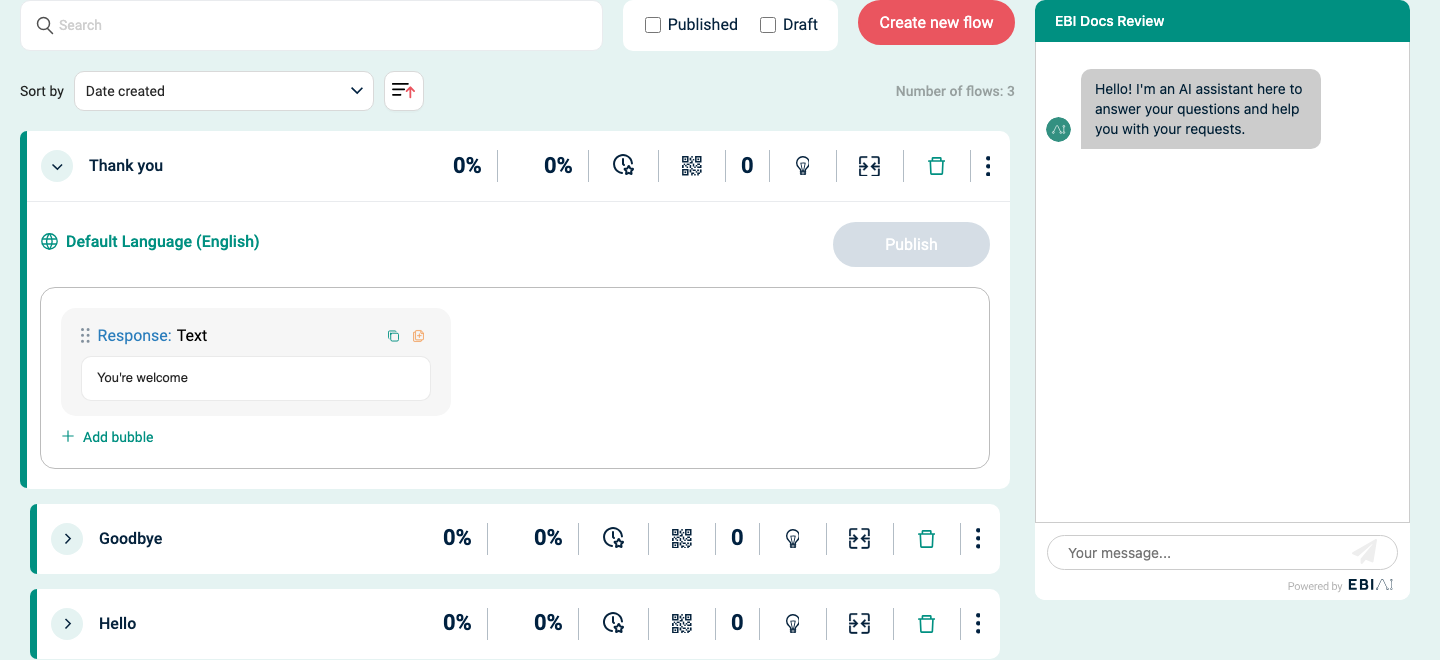
If there are no flows yet, select Add your first flow. If flows already exist, select Create new flow to add another one.
2. Find the right flow
Use Search when you know part of the flow name or topic.
Use the status filters to narrow the list:
| Filter | What it shows |
|---|---|
| Published | Flows that are live for users. |
| Draft | Flows that have unpublished changes or are not live yet. |
Leave both filters empty if you want to see all flows.
3. Sort the list
Use Sort by to change the order of the list.
EBI's AI Studio supports these sort options:
| Sort option | Use it when |
|---|---|
| Date created | You want newest or oldest flows first. |
| Number of times flow has been used | You want to find high-traffic or low-traffic flows. |
| Number of outstanding training to accept | You want to find flows with training suggestions waiting for review. |
| User feedback % | You want to focus on flows with better or worse helpfulness feedback. |
| Flow identified correctly % | You want to review flows that may be matching user requests poorly. |
Use the arrow button beside Sort by to switch the sort direction.
Number of flows shows how many flows match the current search, filters, and sort settings.
4. Read a flow card
Each flow card represents one flow.
The flow title is the user request or topic that triggers the flow. When you expand a card, Default Language (English) shows the default language version of the flow content.
The card header can show:
| Control or value | What it means |
|---|---|
| Percentage with the tooltip Flow is identified and used correctly | How often EBI's AI Studio judged the flow match as correct. |
| Percentage with the tooltip User feedback that response was useful | How often users gave useful feedback for the flow. |
| Icon with the tooltip Control how your flow is triggered | Opens trigger and training settings for the flow. |
| Get a QR Code icon | Opens a QR code for the flow. |
| Number with the tooltip Total number of times this flow has been used in the last 90 days | Recent usage count. |
| Lightbulb icon | Controls whether the flow title can appear in welcome examples. |
| Merge icon | Opens merge options when similar flows are detected. |
| Delete icon | Moves a published flow to drafts, or deletes a draft flow. |
| Three-dot menu | Opens actions such as Duplicate and Export. |
Some controls are icons. Hover an icon if you need to confirm its tooltip.
5. Open, edit, and publish a flow
- Select the arrow at the left of a flow card to expand or collapse it.
- Edit the flow inside the expanded card.
- Select Publish when the flow is ready.
When you open Content > Flows, the first flow may already be expanded. Use the same arrow to collapse it or open another flow.
If Publish is disabled, review the flow content and training. Publishing can require at least 5 trained examples.
6. Use draft, duplicate, export, and delete actions carefully
For a published flow, the delete icon opens Move to drafts. This removes the flow from live use but keeps it available for editing and re-publishing.
For a draft flow, the delete icon opens Delete draft. Select Delete in the confirmation modal only when you are sure. This action cannot be undone.
Use the three-dot menu when you need to:
- Select Duplicate to create another flow from the same structure.
- Select Export to download the flow as a
.jsonfile.
Internal users may also see Save as template.
7. Test from the Flow list
If Web Messenger is enabled, Try your live AI appears beside the Flow list. Use it to test the assistant without leaving Content > Flows.
Use Reset chat before testing a different scenario or after making changes.
Verify
- You can find a flow using Search.
- Published and Draft show the expected set of flows.
- Sort by changes the order of the list.
- Expanding a flow card shows the flow editor.
- Try your live AI returns the expected response after you publish and reset the chat.
Common issues
- A flow is missing from the list: clear Search, clear the Published and Draft filters, then check Number of flows.
- A draft flow is not live: open the flow, complete any missing training or content, then select Publish.
- Try your live AI is missing: check whether Web Messenger is enabled for the assistant.
- Publish is disabled: add or review training examples. Some flows need at least 5 trained examples before publishing.
- You deleted the wrong draft: draft deletion cannot be undone. Recreate the flow or import an exported
.jsoncopy if you have one. - Testing still shows the old behaviour: select Reset chat, then try again.